Are you also struggling with having a campaign active but receiving zero or few impressions? This can happen for various reasons, such as billing issues, account suspensions, disapproved ads, incorrect campaign settings, etc., even when your ads are approved or enabled.
Continue reading this blog to understand the top 10 common reasons why your ads are not getting impressions.
Key Takeaways
- Failed payments, pending balances, account suspensions, or incomplete business information can limit your impressions.
- Your campaign, ad groups, ads, and keywords must be active and eligible to receive impressions.
- Make sure your target location, audience, language, and device settings let your ads reach relevant potential customers.
- Review Quality Score components, organize keywords into relevant ad groups, and ensure landing pages match user intent.
- Use Google Keyword Planner to identify relevant search terms.
- Google frequently changes its policies; check Google's policy details and fix any issues.
Google Guidelines Affecting Impressions
Google frequently updates its policies, which can affect how ads are delivered and how performance is reported. Here are important Google Ads updates to keep in mind when struggling with low impressions.
Limited Ad Serving Expansion (August 2026 – 2028)
Google is expanding its Limited Ad Serving policy across Google Ads, with gradual implementation through 2028. Advertisers who do not meet Google’s qualification criteria may receive fewer impressions. Maintaining policy compliance, completing advertiser verification, and building account trust can help.
Shift to “Begin-to-Render” (BTR) Impression Counting for Display (Upcoming February 2027)
According to this new update, Google Ad Manager and AdSense will count display impressions when an ad successfully loads and begins rendering, rather than when it starts downloading. This may reduce reported impressions without necessarily indicating a drop in advertising demand.
Top 10 Reasons Why Impressions Are Getting Affected
Google Ads impressions may drop or discontinue for several reasons, even if your campaigns appear active. There can be several reasons, such as billing problems, account status issues, advertisement approval, marketing settings, targeting, keywords, etc.
Here are the 10 common reasons why your Google Ads are not getting impressions and what you can do to fix each issue.
1. Your Billing or Payment Method Has an Issue
Google Ads may stop serving your ads if there is a problem with your billing information or payment method.
Common reasons may include:
- Payment method failure
- Any unpaid balance
- Expired payment method
This can affect impressions even if your campaigns and ads appear active.
How to Fix?
Start by checking the exact reason for this. Follow these steps:
1. Check Your Billing Summary
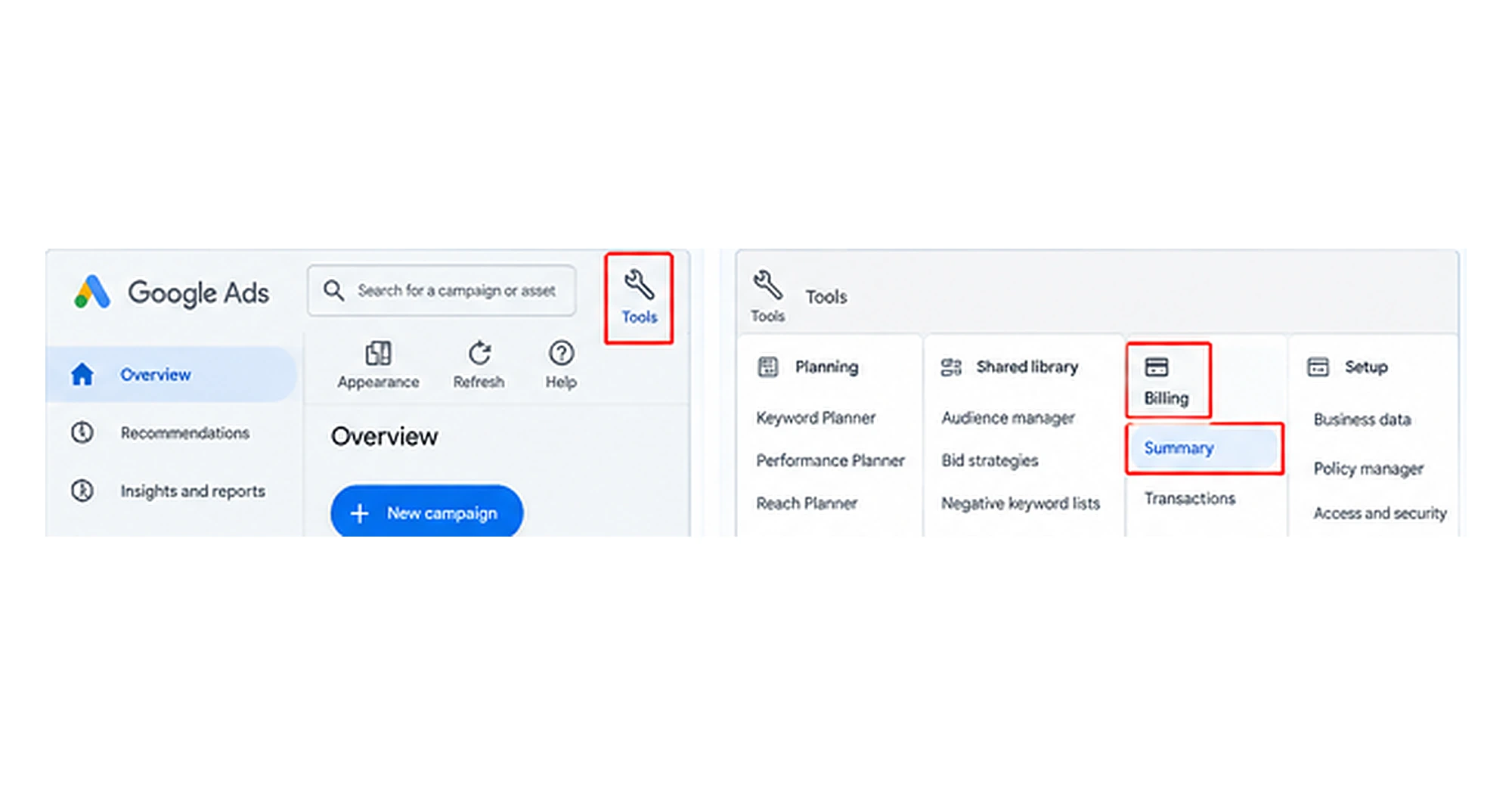
For this, open your Google Ads account and click on Tools in the top navigation bar.
After this, go to Billing and click on Summary to review your account’s payment status, outstanding balance, and recent transactions.
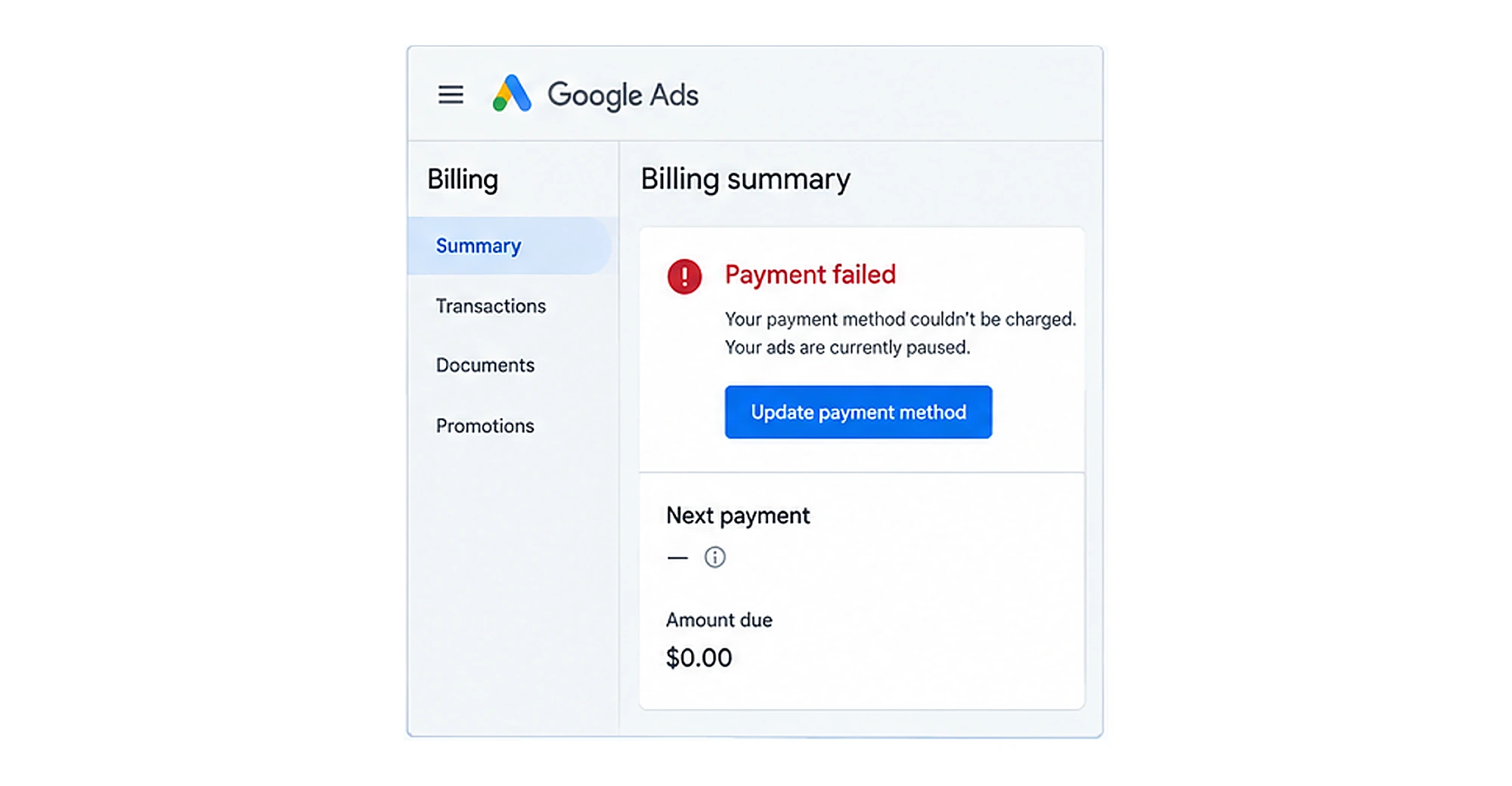
Under Summary, you can see the exact reasons that are affecting your impressions.
Check the failure reasons in the billing summary. The Billing Summary helps you identify payment-related problems that may be preventing your ads from running.
2. Update or Re-enable Your Payment Method
If your payment method has expired, declined, or requires an update, correct the details before making another payment.
For this: Go to Billing and Payment Methods. Find your listed card or account and click on Fix it or re-enable payment method.
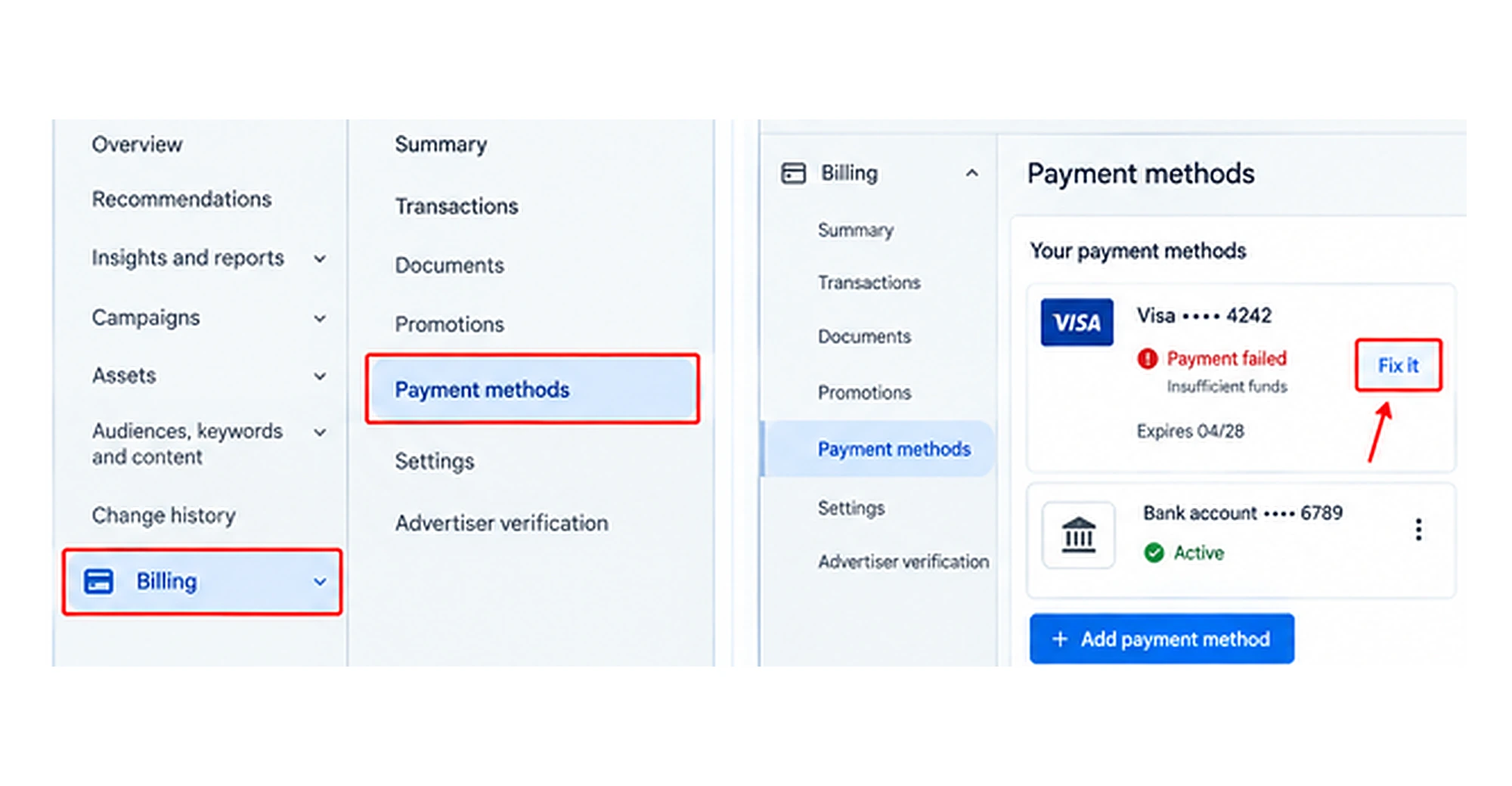
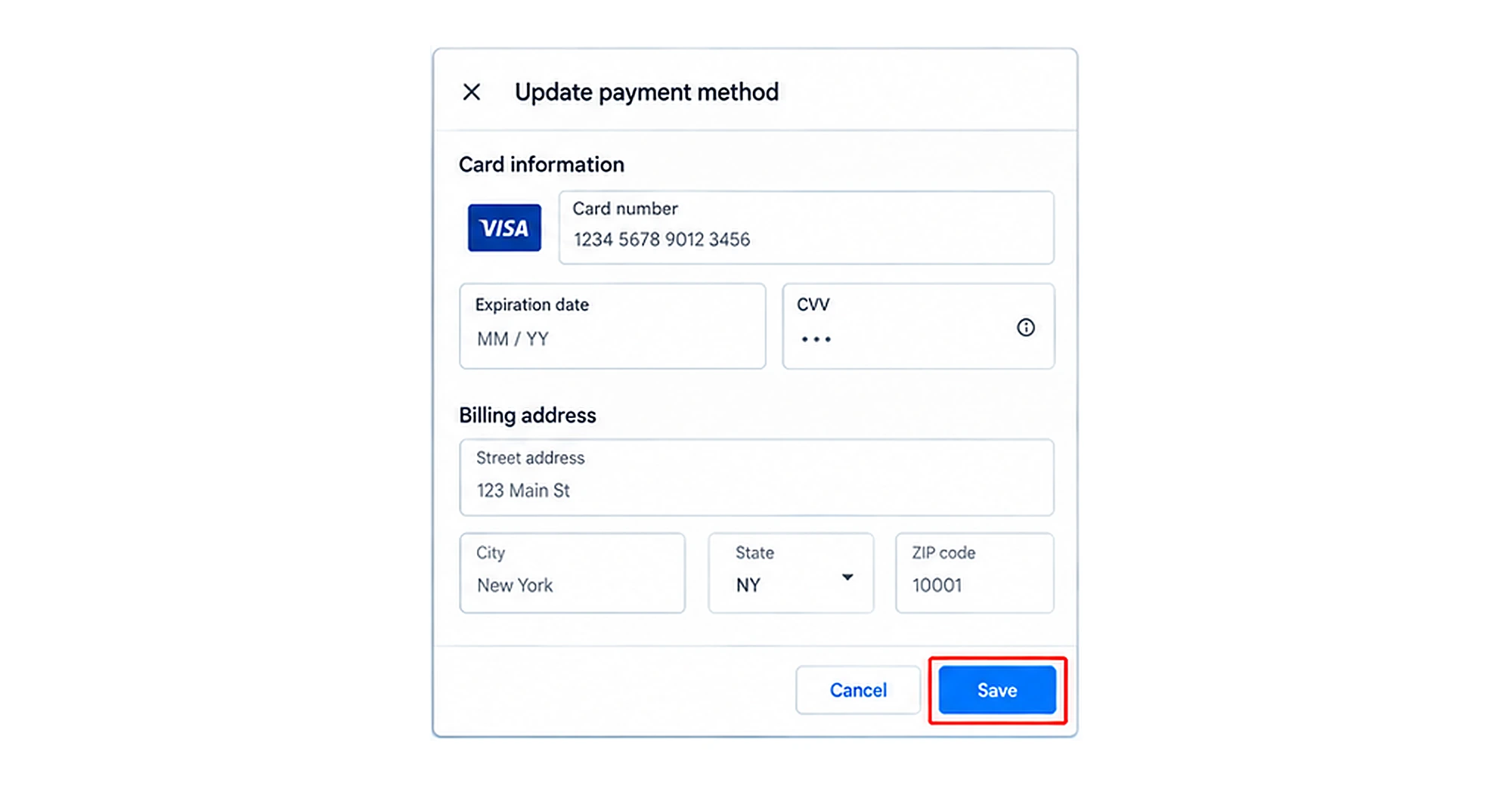
Re-enter your card details, expiration date, CVV, and billing address to make sure everything matches your bank records.
Once it’s done, save changes and confirm your payment.
Important points to keep in mind:
- Make sure card details match your bank records.
- The billing should be the same as the one on your bank statement.
- If your card was declined, check with your bank for any blocks or pending transactions.
3. Pay Any Outstanding Balance
An unpaid balance may prevent your ads from serving until the billing issue is resolved.
For this: Return to Billing, click on Summary, and look for any pending amount.
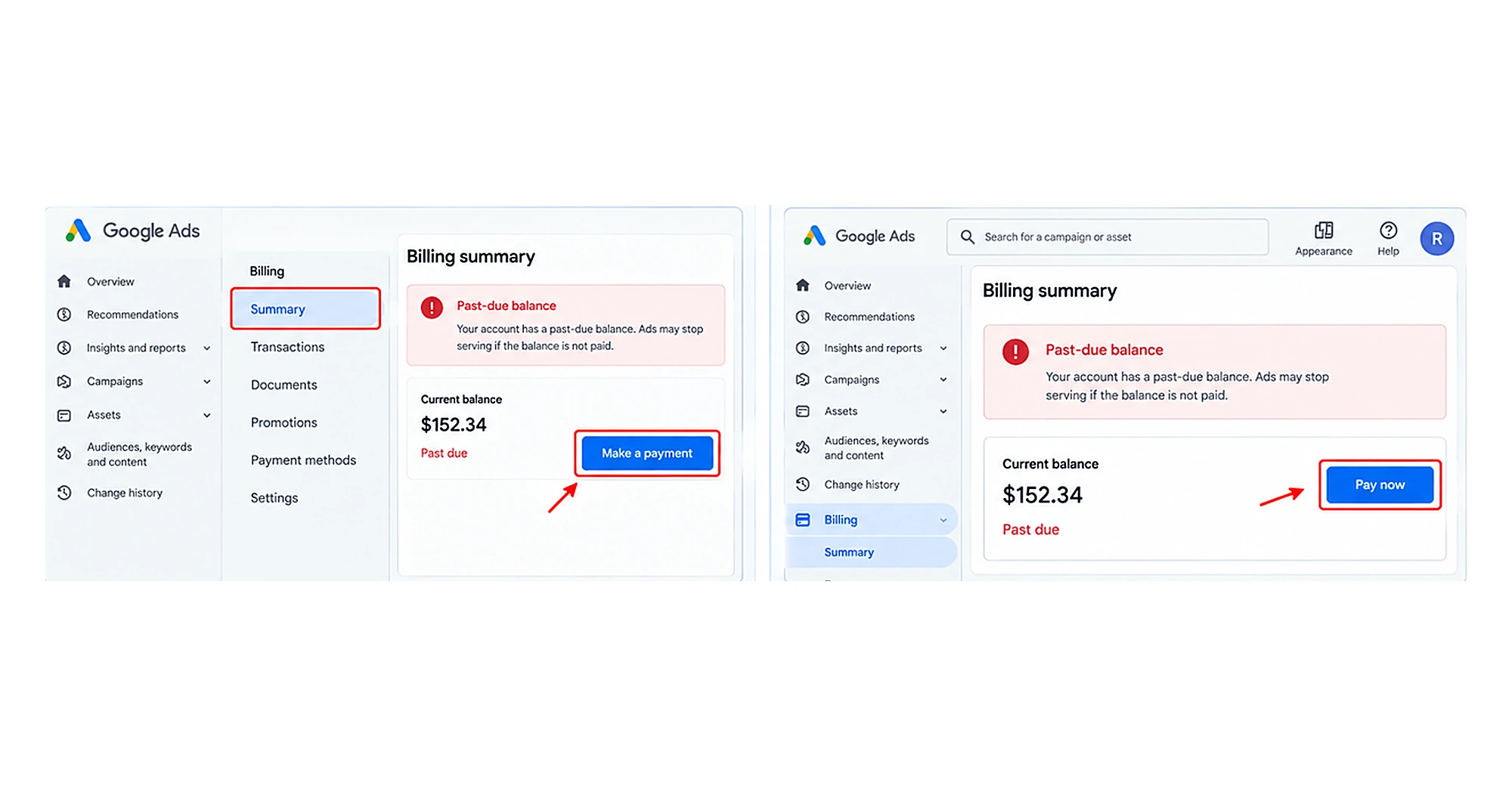
Click on Make a payment or Pay now and fill in all necessary details to clear the amount immediately.
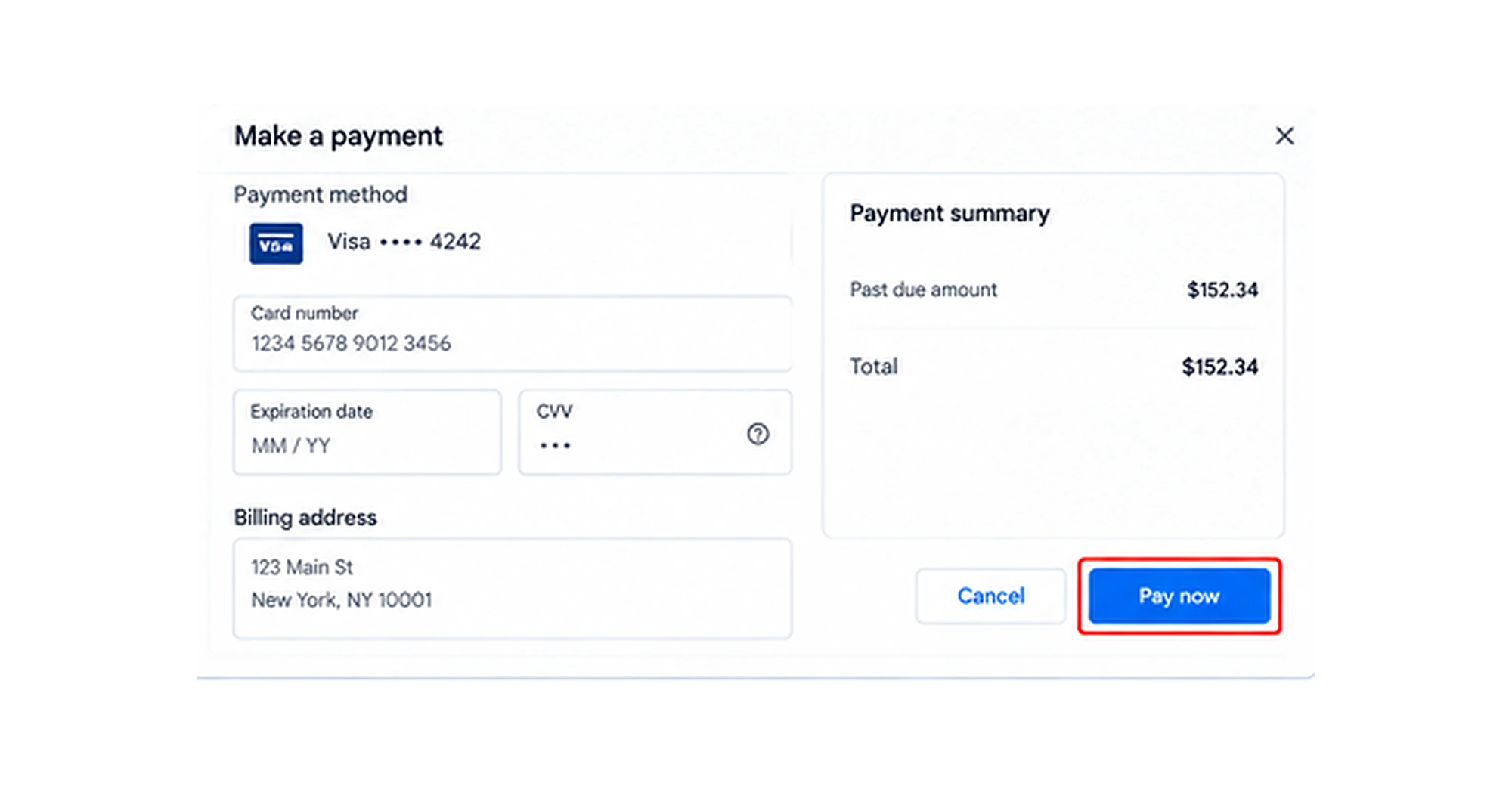
Note: Depending on your payment method and Google’s processing time, the balance may not update immediately.
4. Add a Backup Payment Method
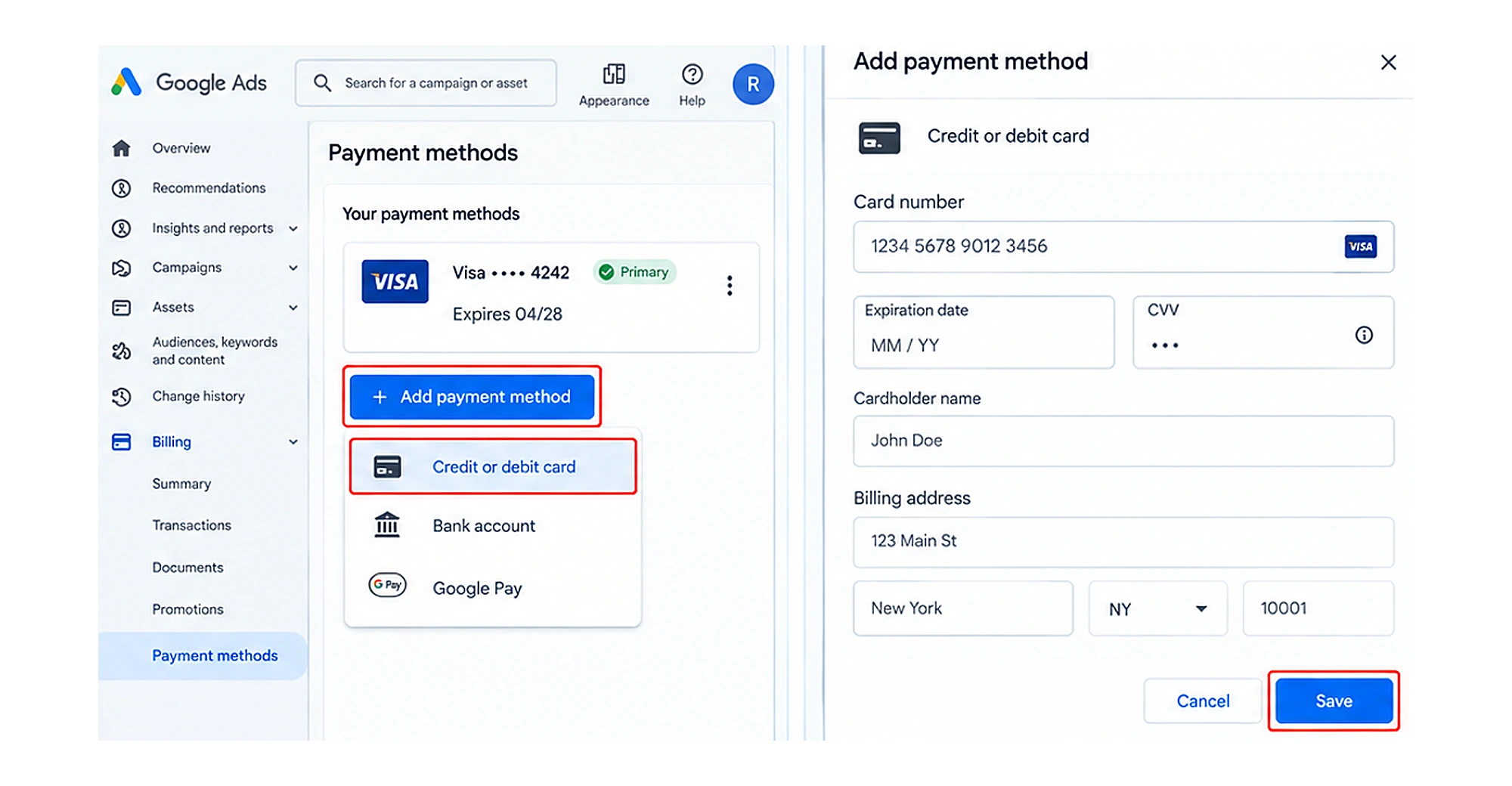
Adding another payment method can help reduce the risk of future disruption if your primary card is declined or becomes unavailable.
For this: Go to Billing and click on Payment Method. Click on + Add Payment Method and select a credit or debit card. Enter your card details and click Save.
5. Confirm That Ads Are Running
After settling the billing issue, return to your Google Ads dashboard and check your campaign and ad statuses.
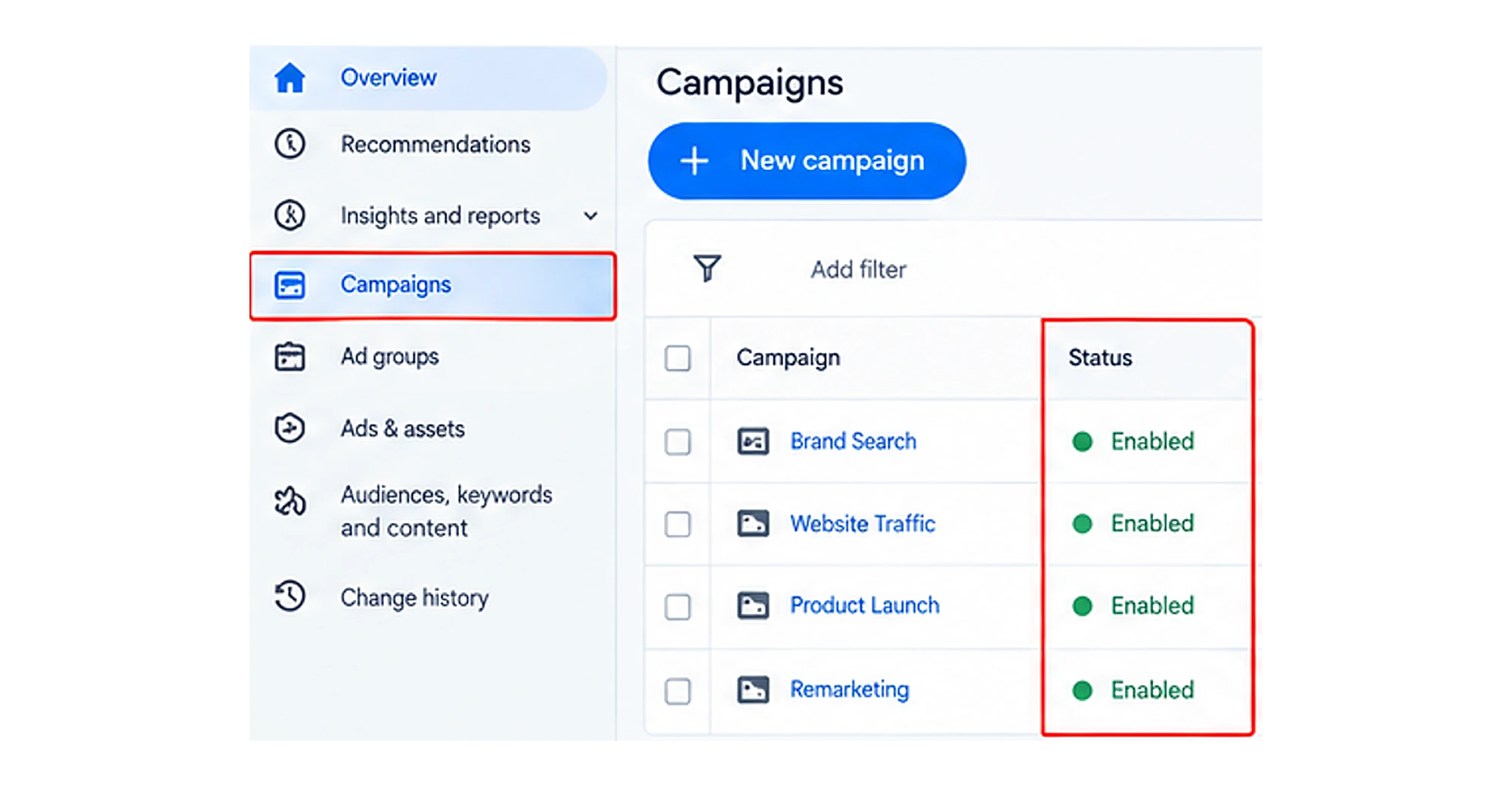
Check the impressions on an hourly basis or by day to see whether delivery resumes.
Note: After fixing all the above billing issues, if impressions remain less than or equal to zero, then check for other issues such as account suspension, disapproved ads, restrictive targeting, low keyword search volume, or bidding limitations.
2. Your Account Is Suspended or Under Review
Google may suspend or restrict the account if it finds any violation of its policies or terms and conditions.
Here are some common reasons why Google suspends accounts:
- Policy violations: Google prohibits false, misleading claims, fake pricing, landing pages that do not match the ad promise, or items like weapons or unauthorized drugs.
- Advertiser Verification Problems: These include incomplete identity verification, business verification, or mismatched details between your website, business entity, and payment profile.
- Poor website experience: Google generally prioritizes websites with complete contact information, clear business ownership, and clear transparency. It restricts those websites missing all this.
- Unauthorized Activity: Temporary suspensions triggered when Google detects that an unauthorized user or malware is trying to access the account.
How to Fix?
1. Identify the Specific Reason
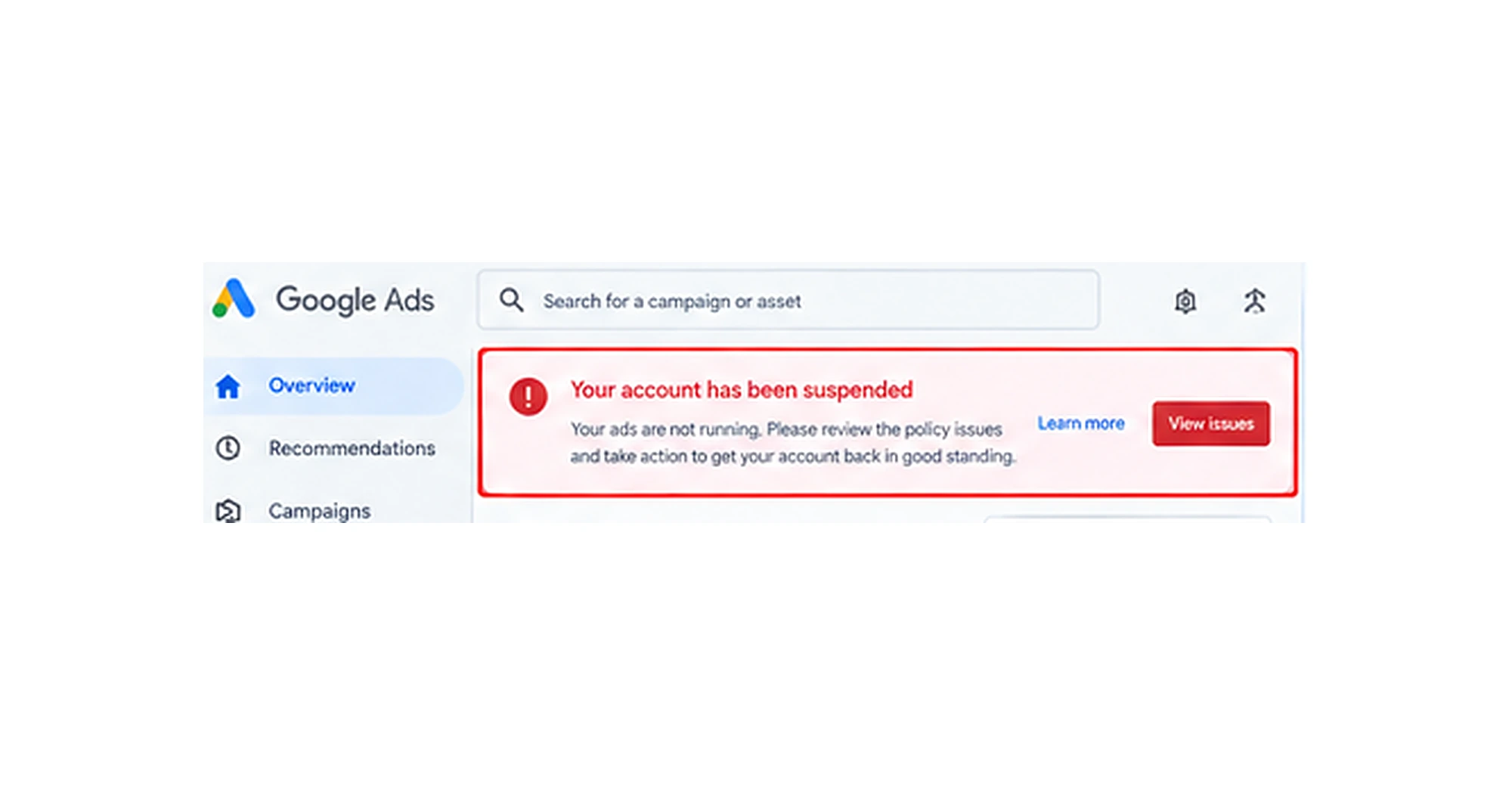
Log in to your Google Ads account and check for any red alert banner at the top.
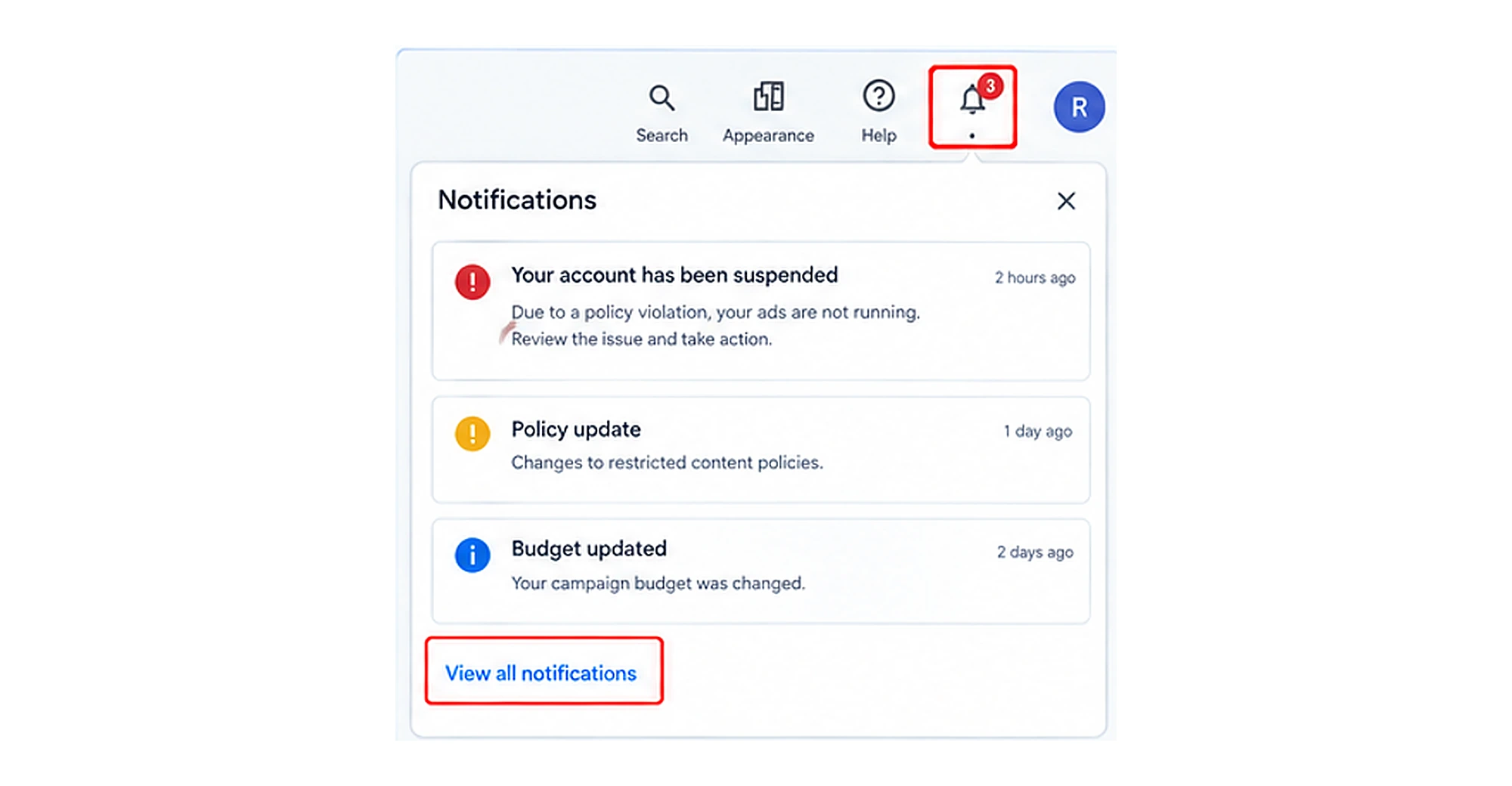
After this, click the notification bell in your Google Ads account and review any alerts related to account suspension, policy violations, billing, or advertiser verification.
Also, check the email associated with the Google Ads account for an official suspension notice.
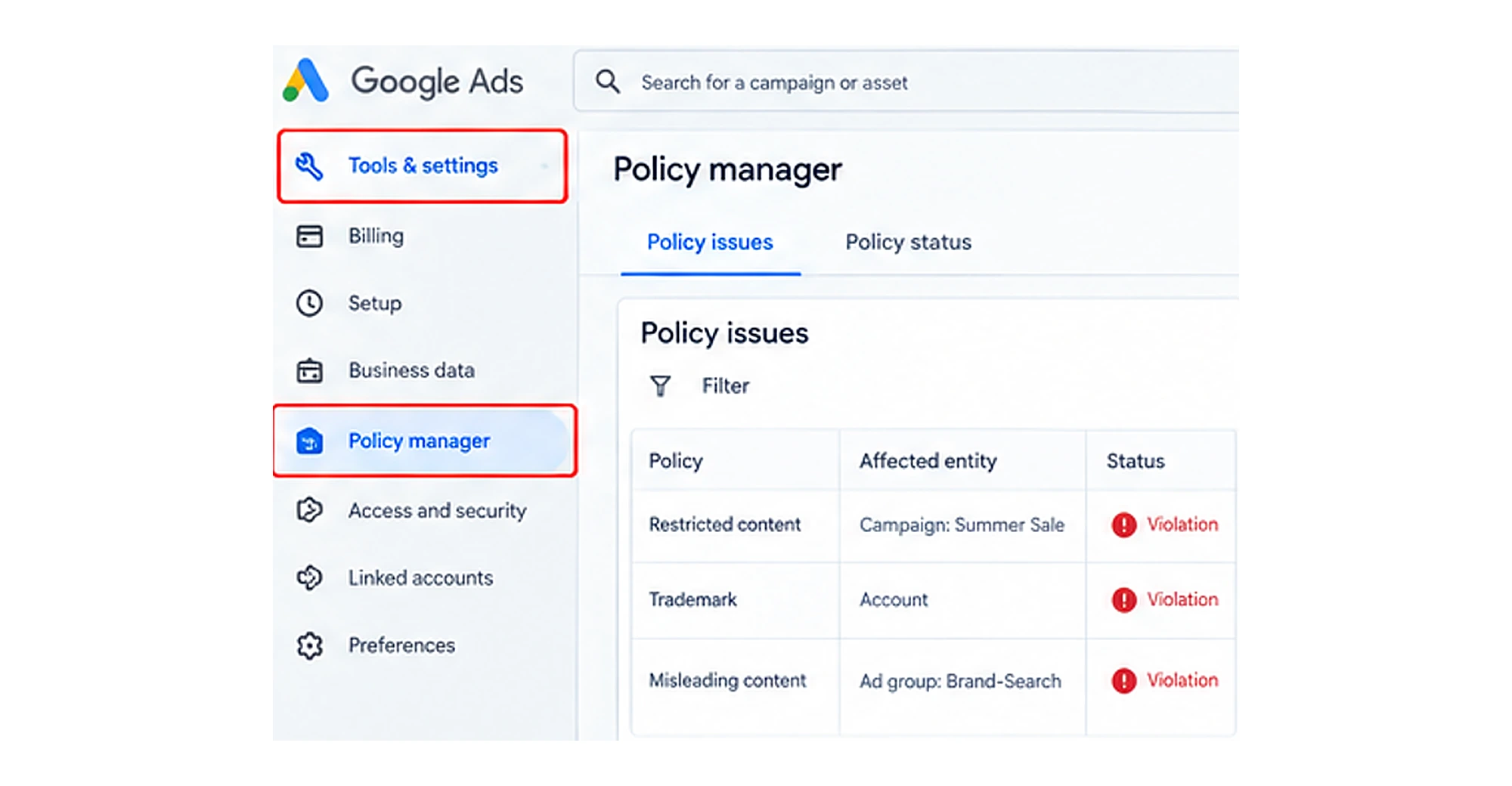
Go to Tools & settings > Policy manager to check policy issues, review policy violations, and the status of affected ads, where applicable.
Check the exact policy name, affected account or campaign, and any deadline provided by Google. This will help you determine what needs to be fixed before submitting an appeal.
2. Fix the Root Cause on Your Website and Account
Google evaluates the overall website, not only a particular ad.
Therefore, it is important to make changes before getting started with an appeal.
- Add clear contact us information, privacy policies, terms & conditions, or refund & return information.
- Make sure all technical aspects, such as website loading speed, links, and errors such as 404, 301, 302 are fixed well.
- Clearly explain what you sell, who you are, pricing, delivery timelines, and how customers can get support.
- It is important to use the same legal business name, address, phone number, and email across your website, Google Ads account, and Google Merchant Center.
- Resolve all major billing issues discussed in the previous point.
- Complete all necessary verification. For this, visit the relevant verification section in your Google Ads account and complete any outstanding identity, business, or payment verification requirements.
3. Submit a Clear Appeal
After fixing all important issues, submit one clear appeal through the official link.
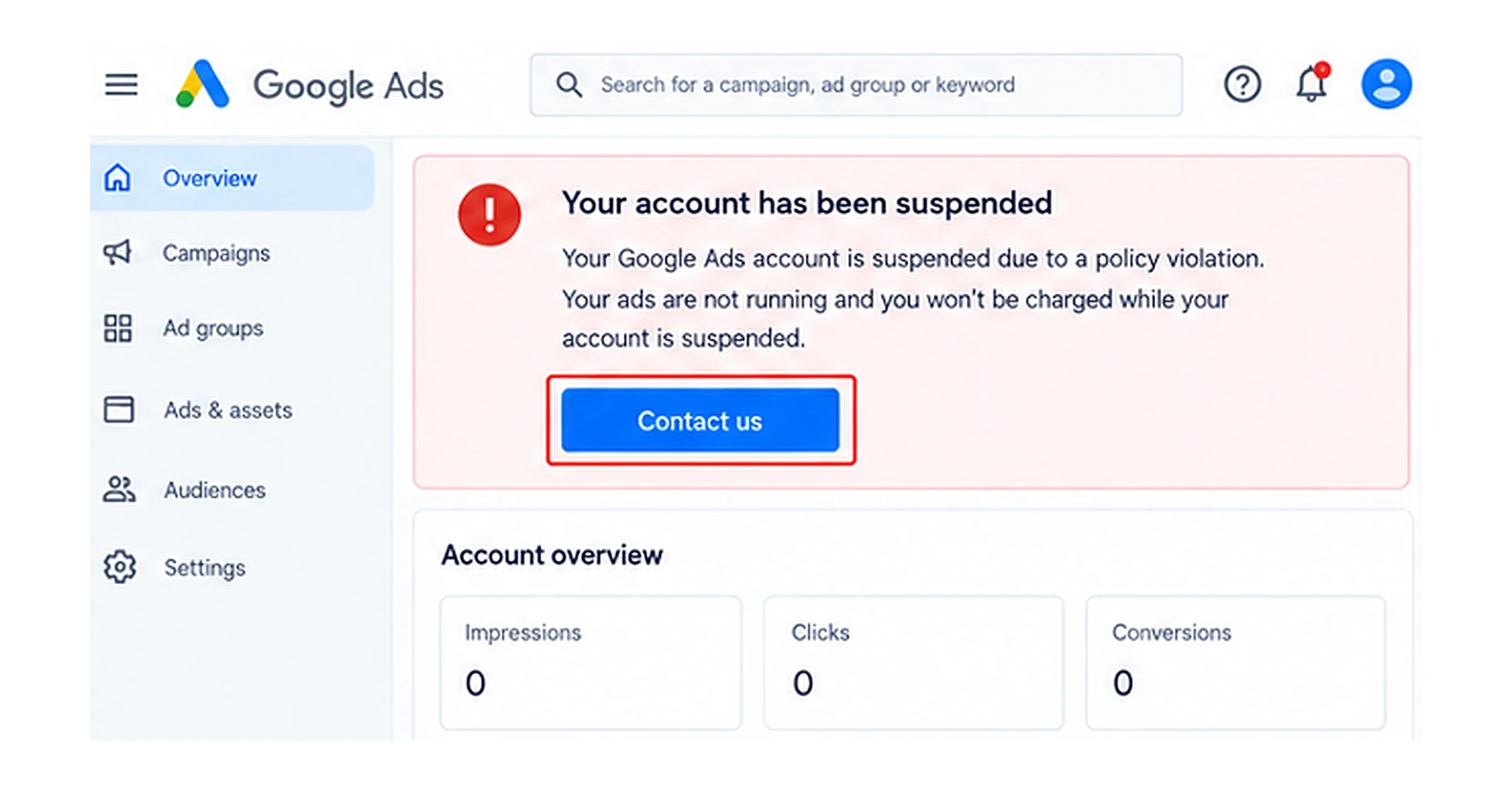
For this: Click Contact us, Appeal, or the review link provided in the suspension notice.
Now, write a factual explanation with accurate information about your business and account. Briefly explain the issue identified in the notice and describe the specific steps you took to resolve it.
Attach the supporting documents, such as business registration or verification records, if requested.
Submit an appeal only when you have reviewed the issue and made the necessary corrections.
Note: It typically takes 3 to 5 business days for Google to review and respond to a Google Ads suspension appeal. However, some appeals may take several days or longer, depending on the complexity of the case. There is no guaranteed resolution time.
3. Your Campaign, Ad Group, Ad, or Keyword Is Not Enabled
Your Google Ads may not receive impressions if your campaign, ad group, ad, or keyword is paused or removed. Even if your overall Google Ads account is active, individual campaign elements must be enabled and eligible to serve for your ads to appear in search results.
How to Fix?
1. Check the Campaign Status
The purpose of this check is to ensure the campaign is enabled. If a campaign is paused or removed, your ads will not receive impressions.
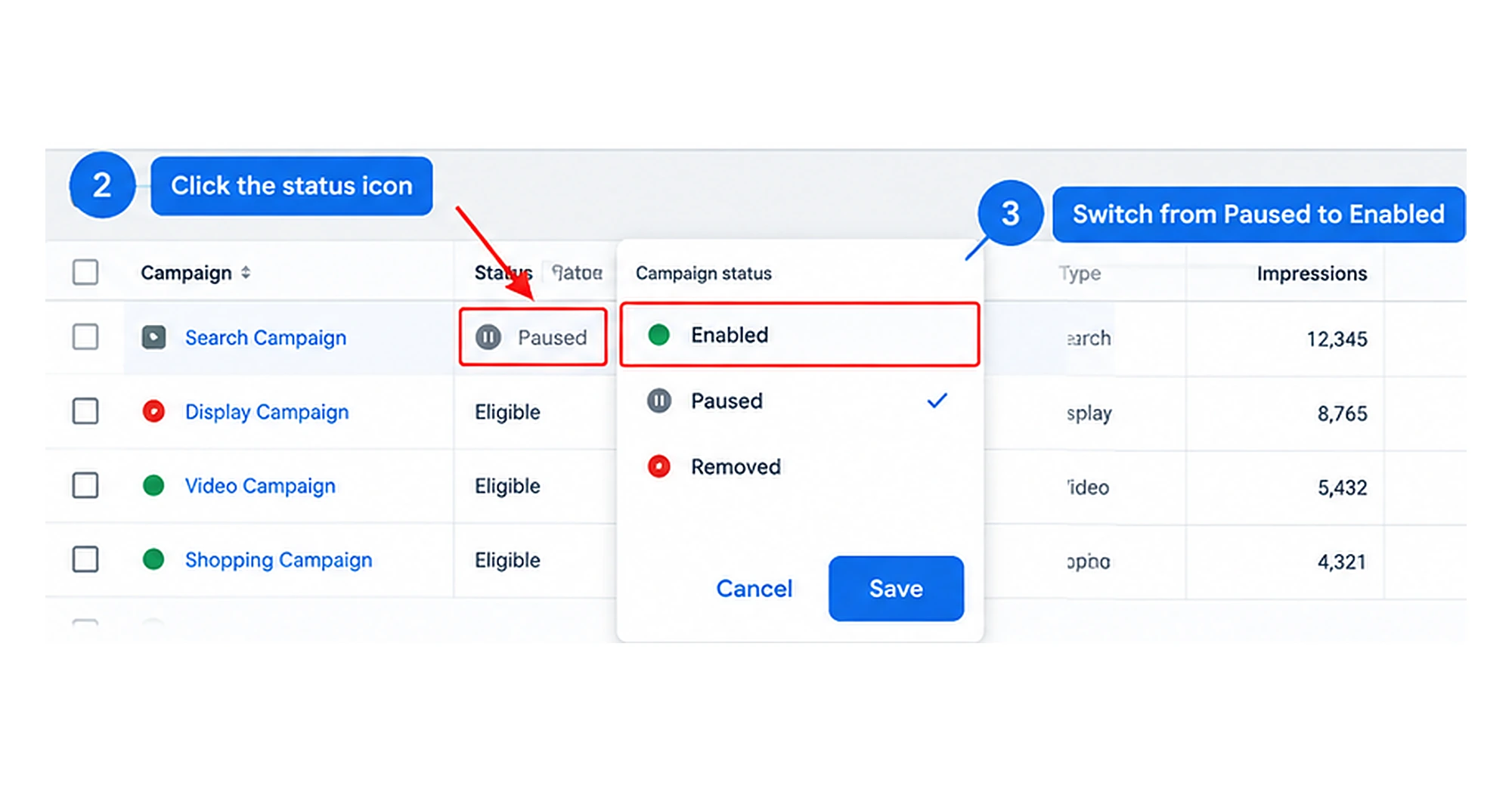
For this, open your Google Ads account and check the Campaigns tab.
Here you can see a green dot with a (Paused icon) or a red circle with an (Eligible icon) in the Status column next to your campaign name.
After this, click the status icon and switch it from Paused to Enabled.
2. Check the Ad Group
Even if your campaign is enabled, a paused ad group can prevent its ads from serving.
Start by checking whether the ad group containing your ads is active.
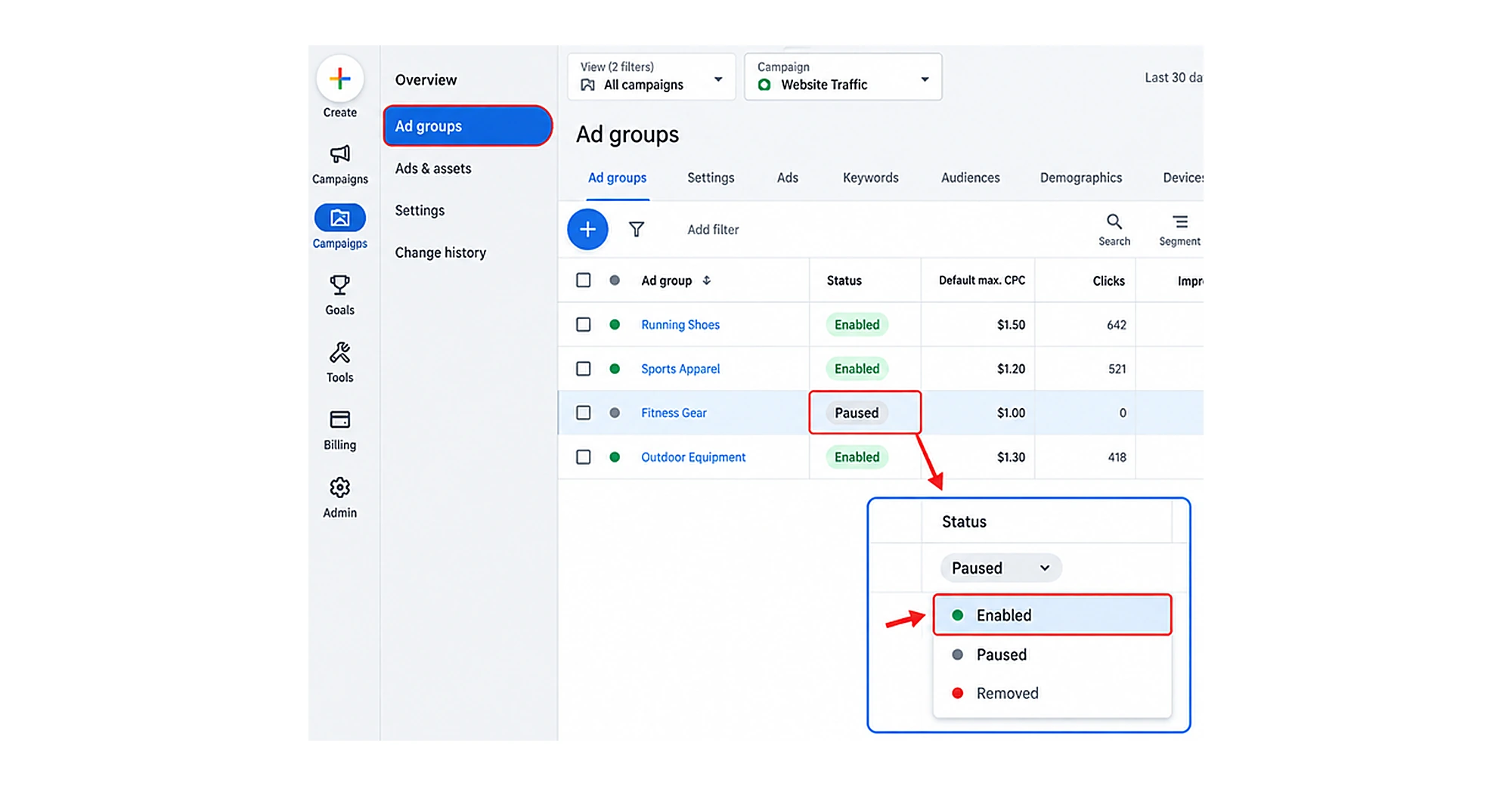
For this, click into your campaign and select the Ad groups tab on the left-side menu. Review the Status column for each ad group.
Here, select any paused ad groups, click the status dropdown, and change them to Enabled.
Note: If the ad group was paused intentionally, review your budget and campaign goals before reactivating it.
3. Check Ads and Extensions
After enabling the ad group, it doesn’t guarantee that your ads will appear. Here are possibilities that individual ads may be paused, disapproved, or still under review.
You must check the status; to do this, go to your campaigns > Ads or open the relevant ad group and select Ads or Ads & assets, depending on your account interface. Verify that your individual ads are toggled to Enabled.
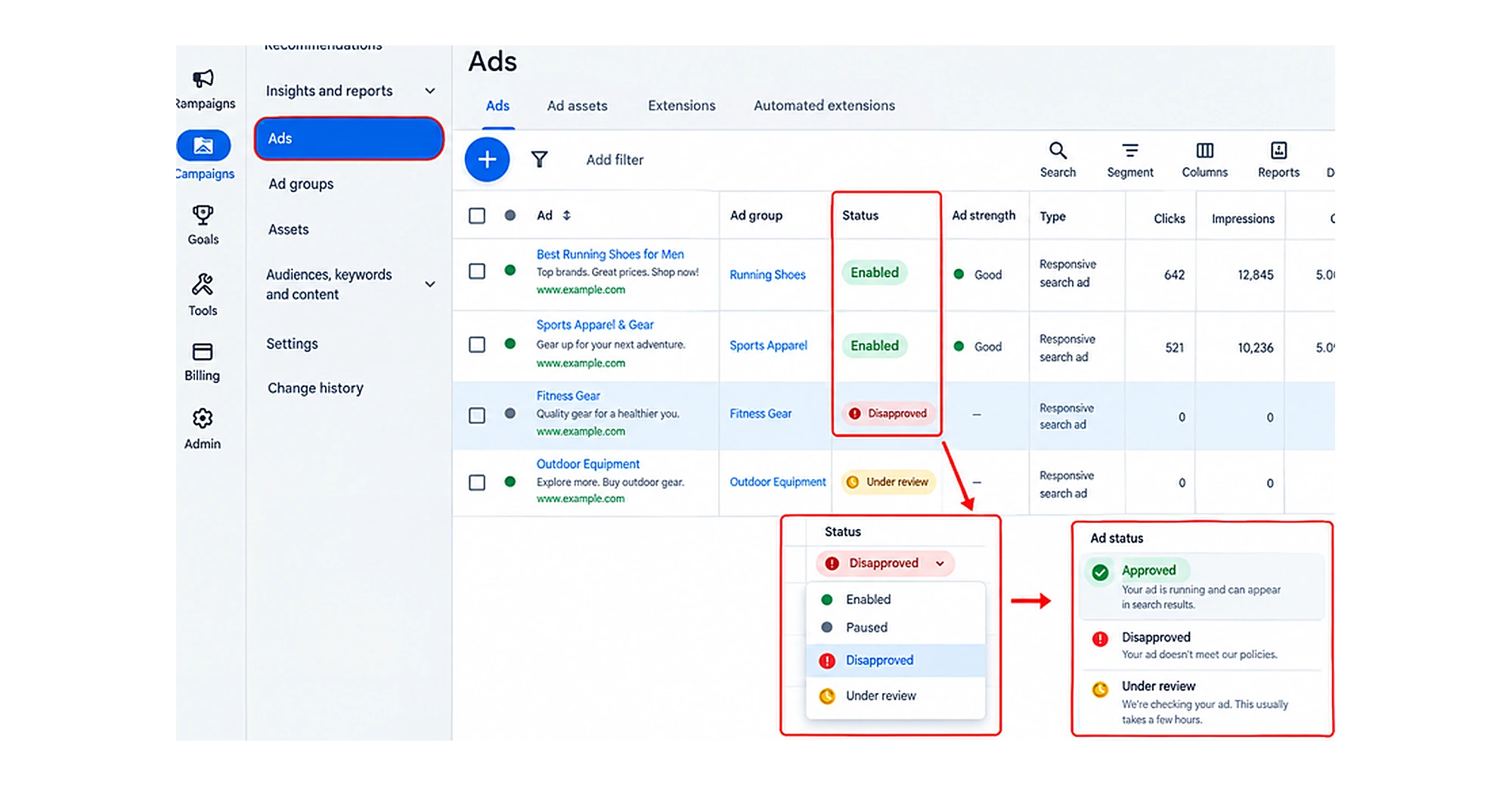
Check if the ads are actually Approved rather than Disapproved or Under review. Disapproved ads will not run even if enabled.
4. Your Ads or Assets Are Disapproved
A disapproved ad or asset, such as headlines, descriptions, images, logos, or other elements used in your ads, has been blocked from running on platforms like Google Ads because it violates the platform’s advertising policies or technical requirements.
How to Fix?
1. Identify the Reason
For this, go to your Google Ads account and click on Campaigns, then click on Ads or Assets.
Here you can check the Status column and hover over Disapproved.
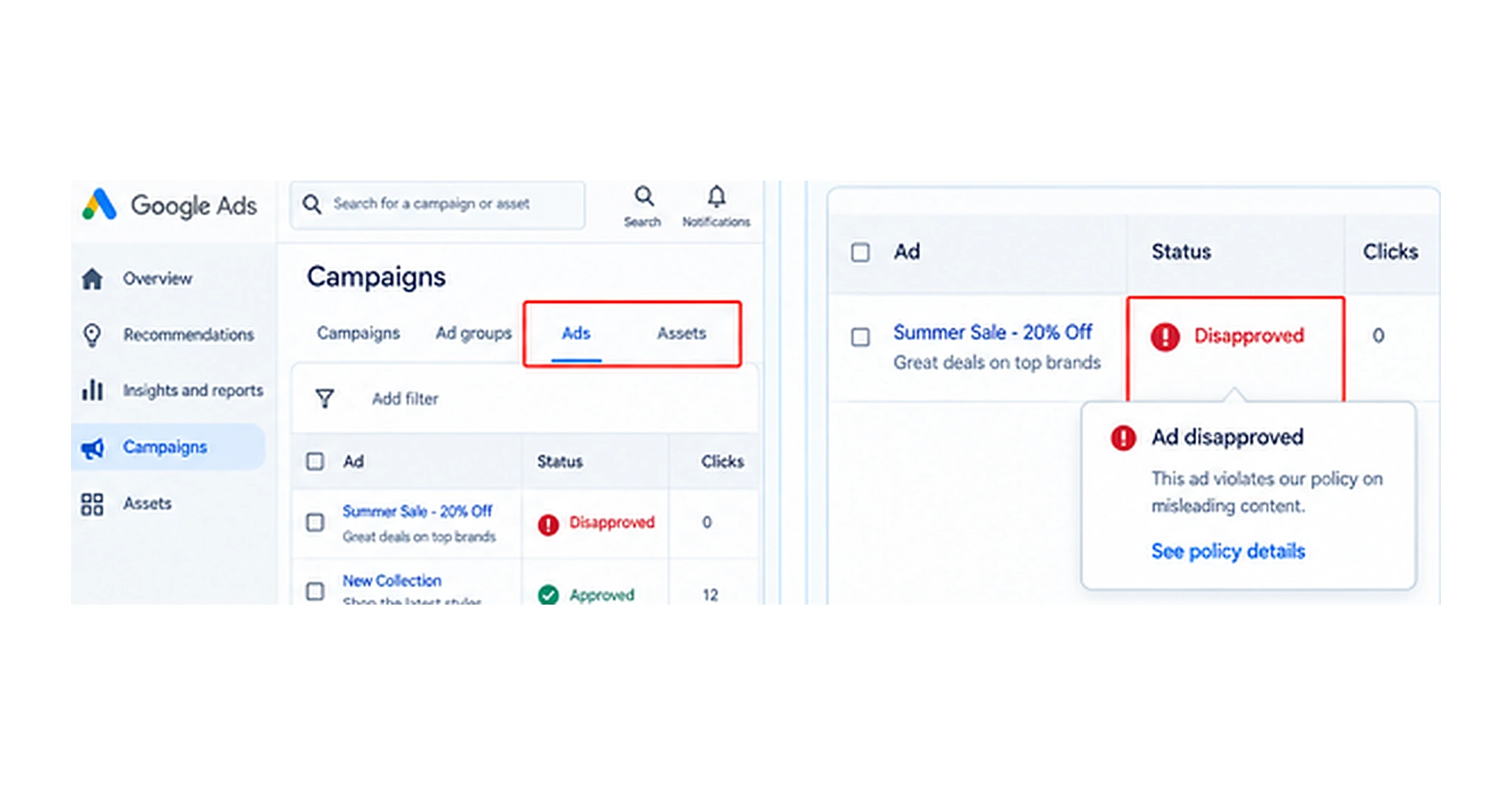
Click See policy details to see the exact rule your ad broke, or open the Policy Manager from your account tools.
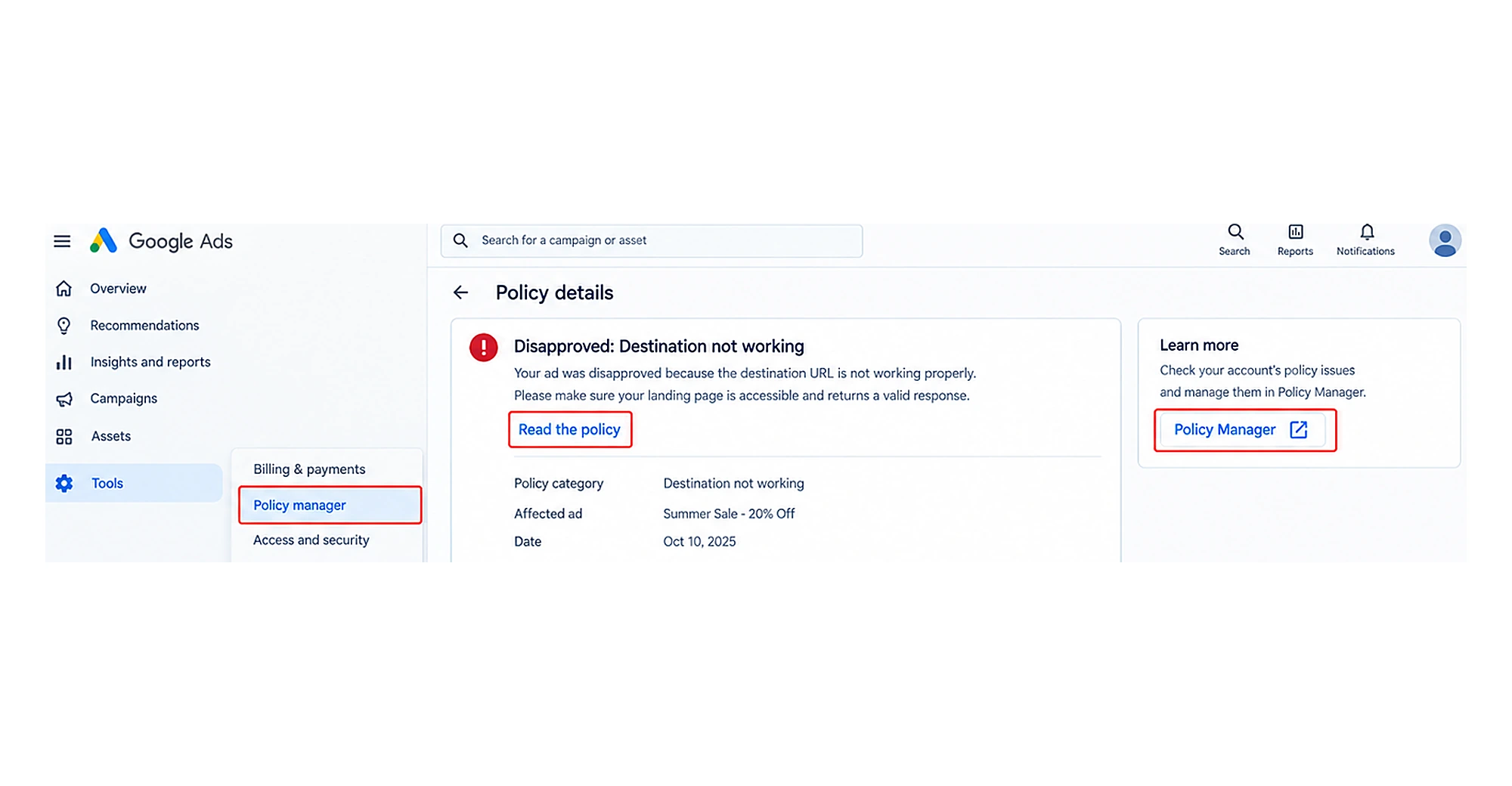
2. Update and Resubmit the Ad
Hover over the disapproved ad or asset and click the Edit (pencil) icon.
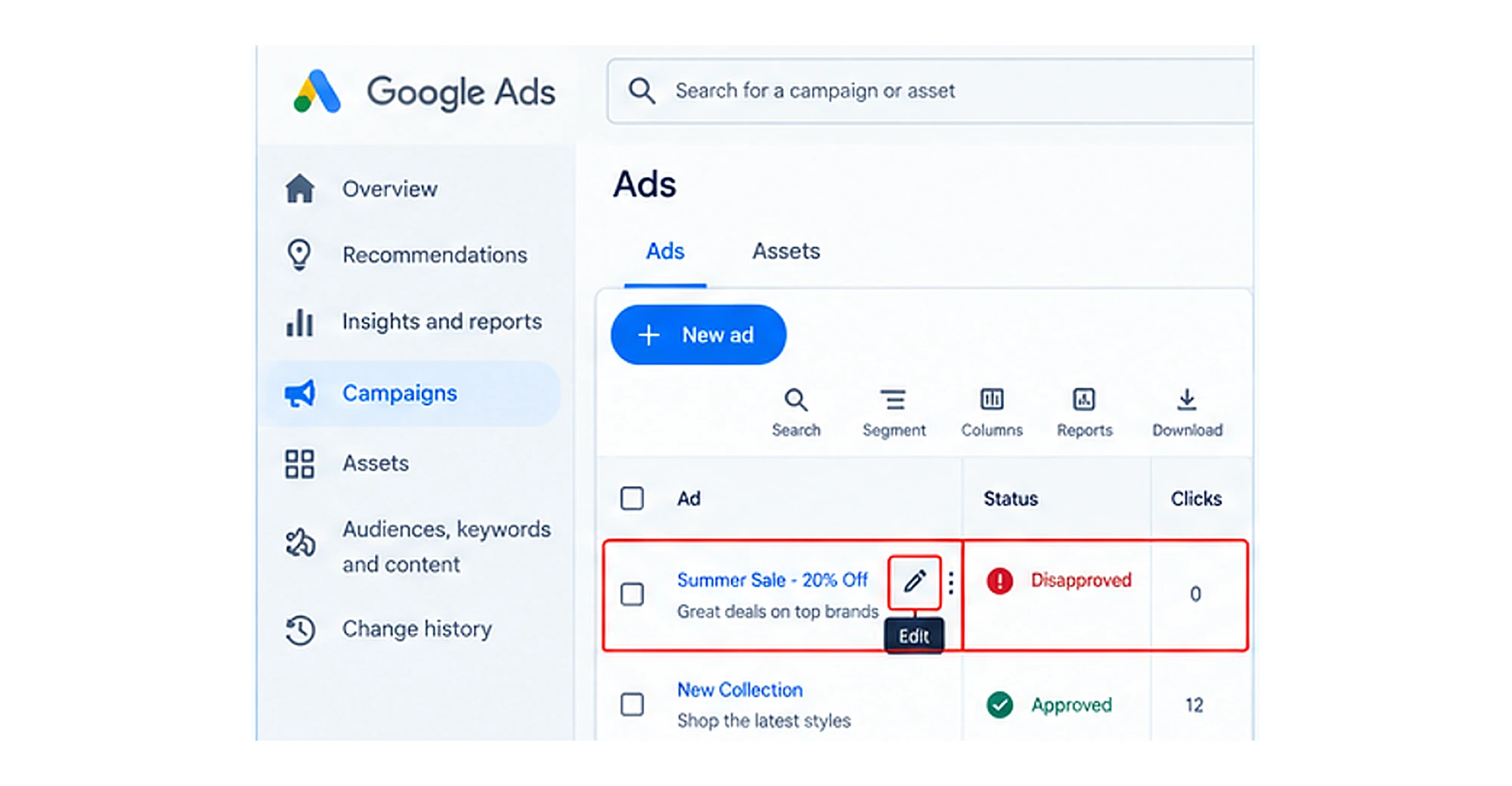
Modify the text, image, extension, or destination URL to fix the problem. Click Save. This automatically triggers a re-review by the system.
After this, wait for the review; once approved, your ad will be active again.
5. Your Campaign Dates or Ad Schedule Are Wrong
This error mainly occurs due to a few reasons:
- Your account time zone differs from your local time or your target audience’s region
- You restricted ads to specific hours or days
- Your campaign start or end dates have already expired, or an ad set is scheduled to start in the future while the main campaign is active.
How to Fix?
1. Check Your Time Zone
Navigate to your account settings to verify that the time zone matches your target region before making adjustments.
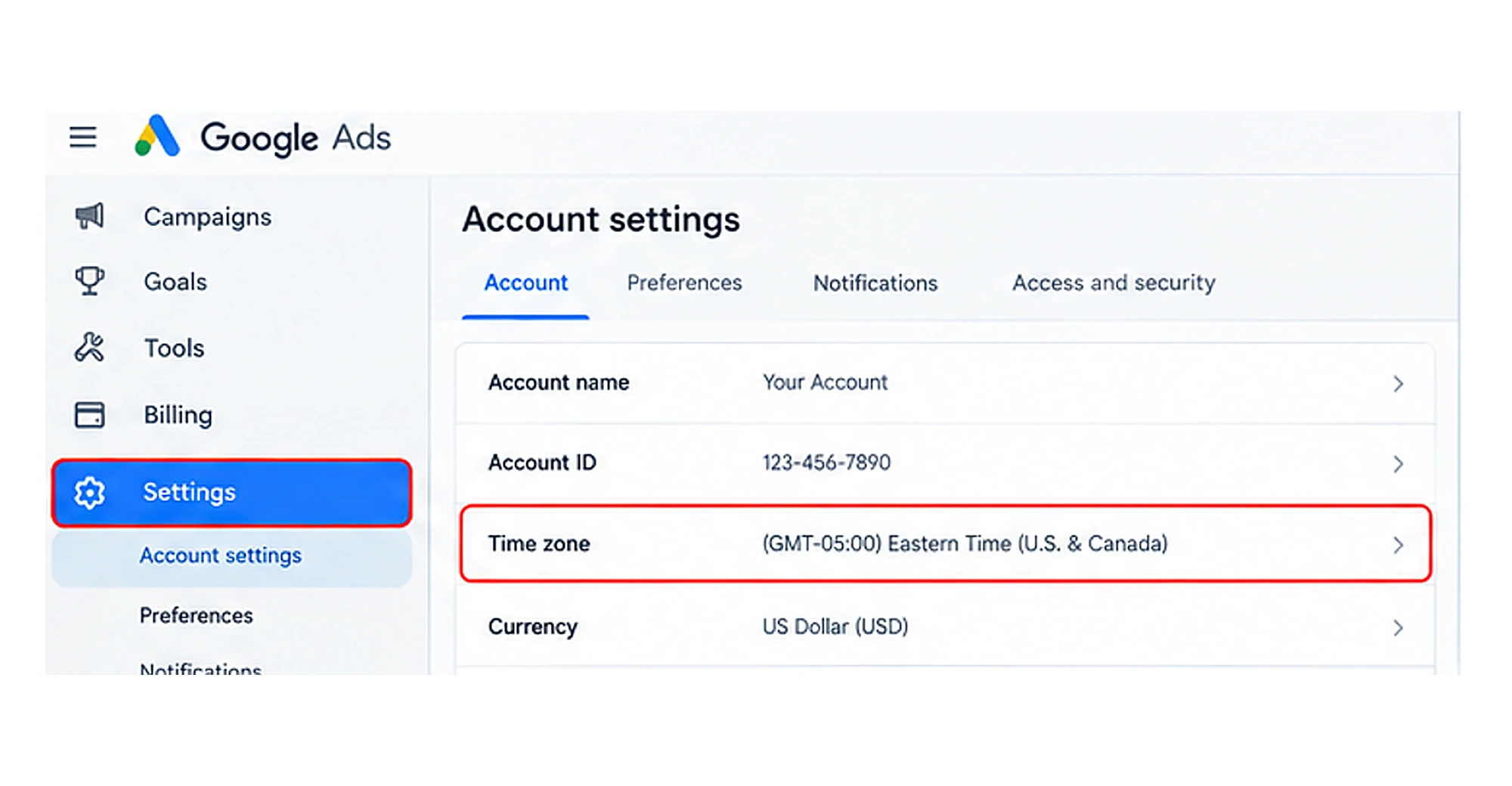
2. Review Campaign Dates
Go to your campaign settings to ensure start and end dates align across your campaign, ad set, and ad levels.
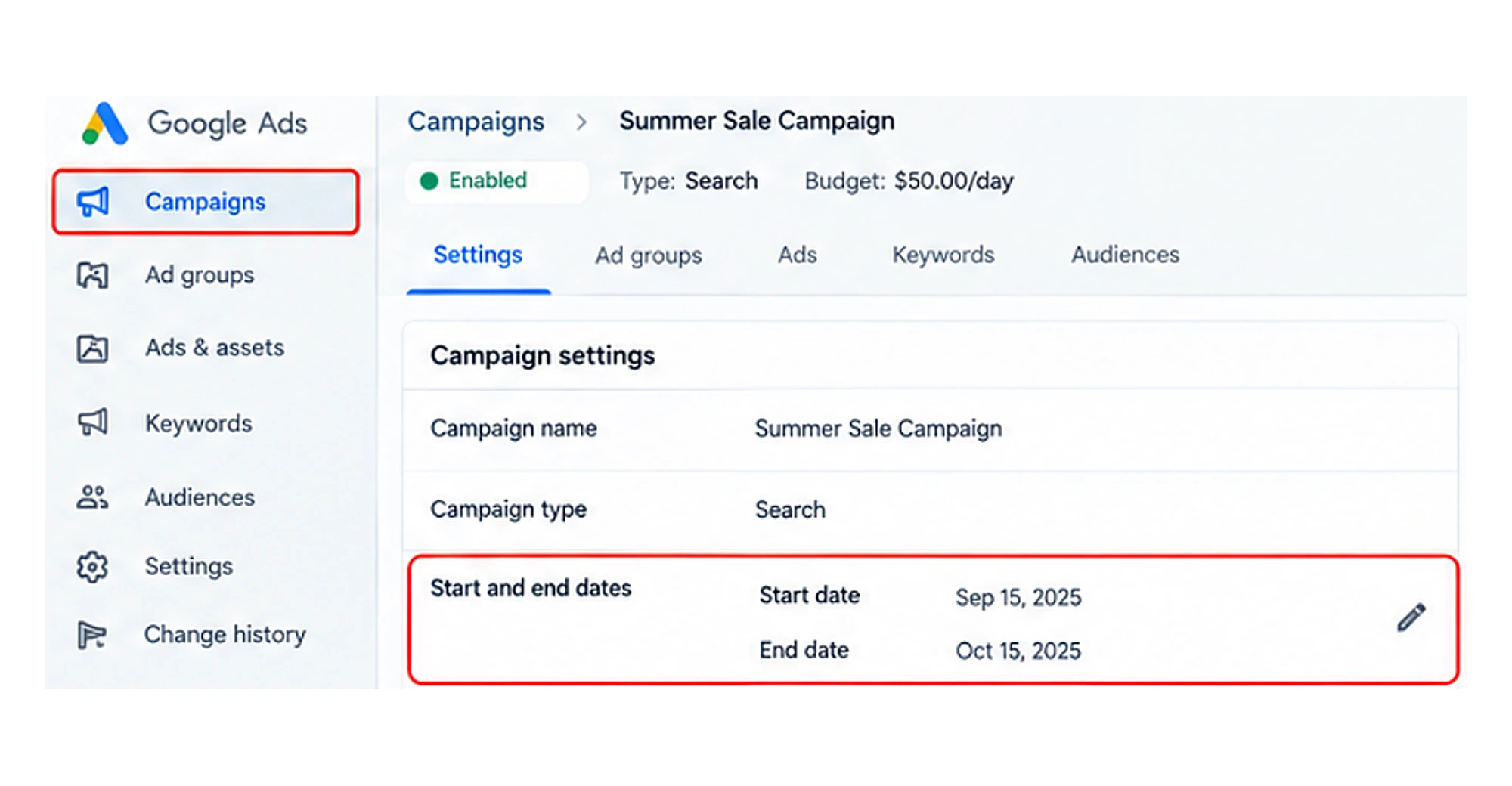
3. Adjust the Ad Schedule
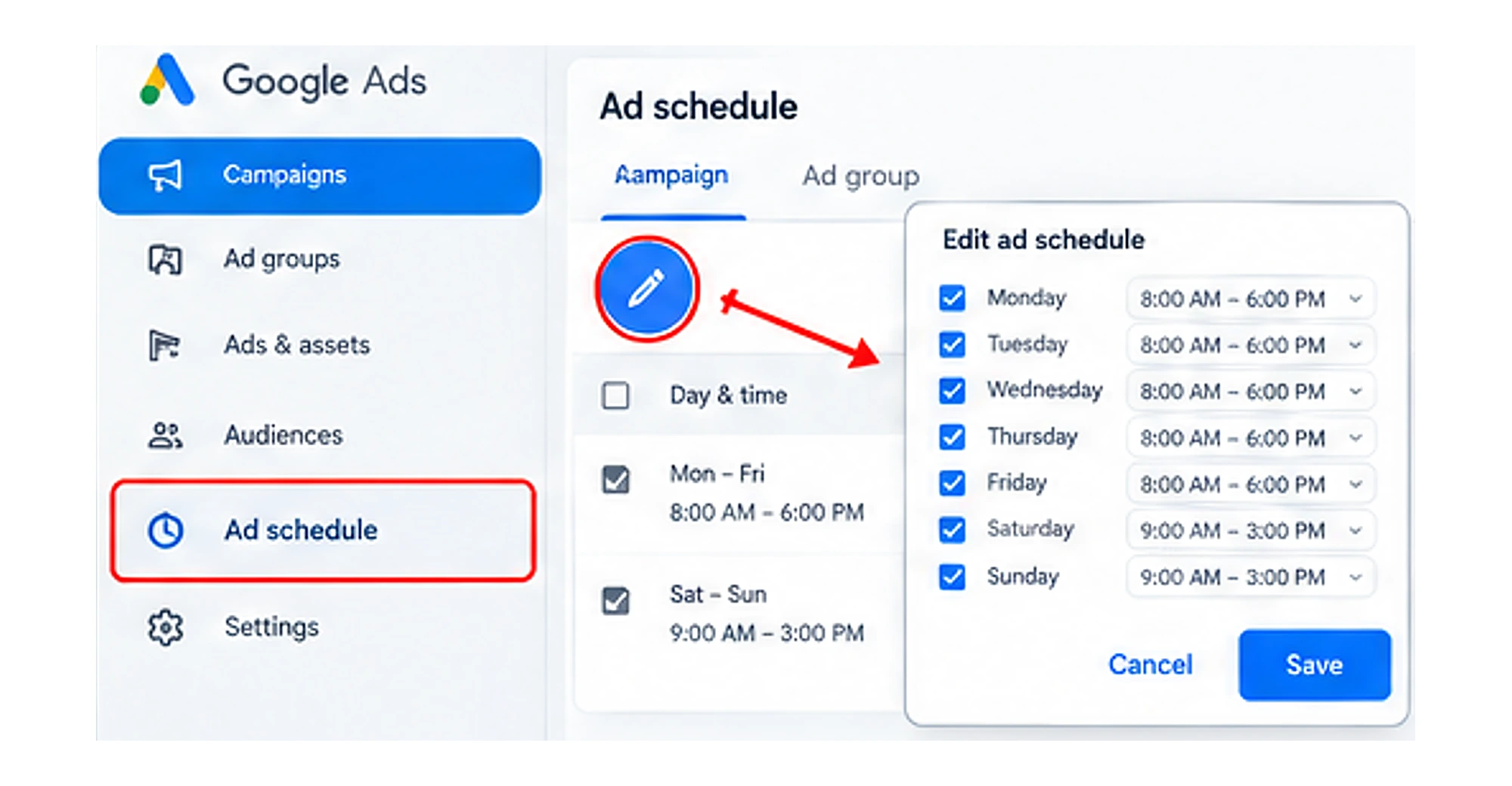
In Google Ads, go to Ad schedule under the Campaigns menu, select the pencil icon, and update your active hours or days.
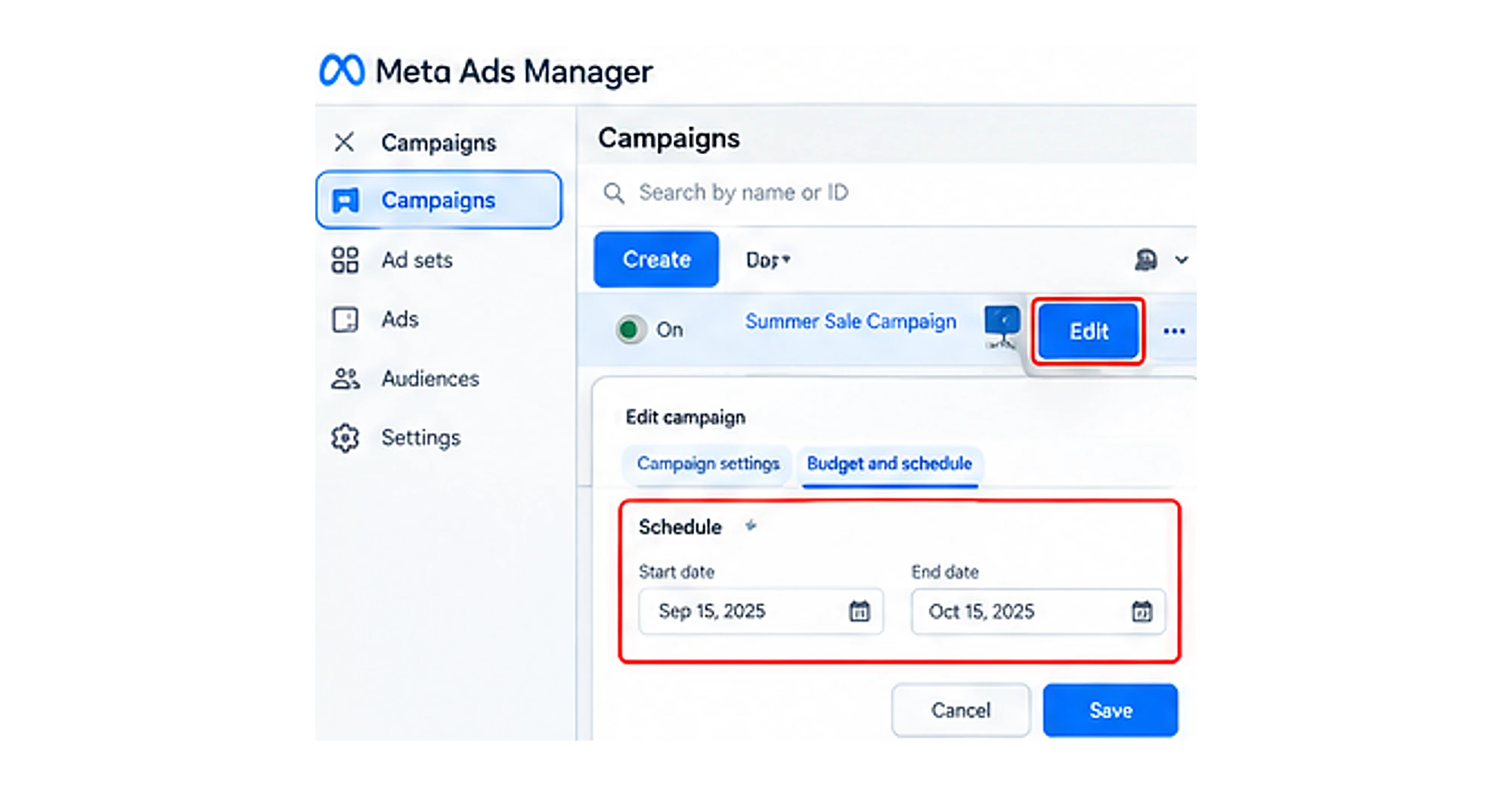
In Meta Ads Manager, tap Campaign, select Edit, and check your Schedule or Budget and schedule settings. Make sure to click Save or Publish to apply your changes.
6. Your Targeting Is Too Narrow
What does this mean? When Google says your targeting is too narrow, it means your ad group or campaign targets too limited an audience, a restricted geographic area, or keyword targeting is small, which lowers impressions and clicks.
How to Fix?
1. Review Your Location
- Open your Google Ads account > navigate to Locations
- Check the countries, cities, and regions you have selected
- If your targeted location is narrow, then add more relevant locations where your business can serve.
- Under the Audience campaign section, check whether you target a limited audience.
2. Check Device Settings
- Check whether your campaign performs well across all devices.
- Avoid excluding devices unless performance data gives you a clear reason to do so.
3. Review All Targeting Settings
- Check your location, language, audience, and device settings.
- Identify restrictions that may be reducing your potential reach.
- Make changes and monitor impressions, clicks, and conversions to measure their impact.
7. Your Keywords Have Low or No Search Volume
If you target keywords with low search volume, then your Google Ads account shows your keyword with low search volume. It means these search terms have zero or very few searches in the past 12 months on Google.
Google temporarily makes it inactive because there is little to no search activity for that term.
It generally will not trigger your ads to appear, resulting in zero or near-zero impressions from that specific term.
How to Fix?
1. Check Keyword Status
The first step is to identify keywords that are not currently triggering ads.
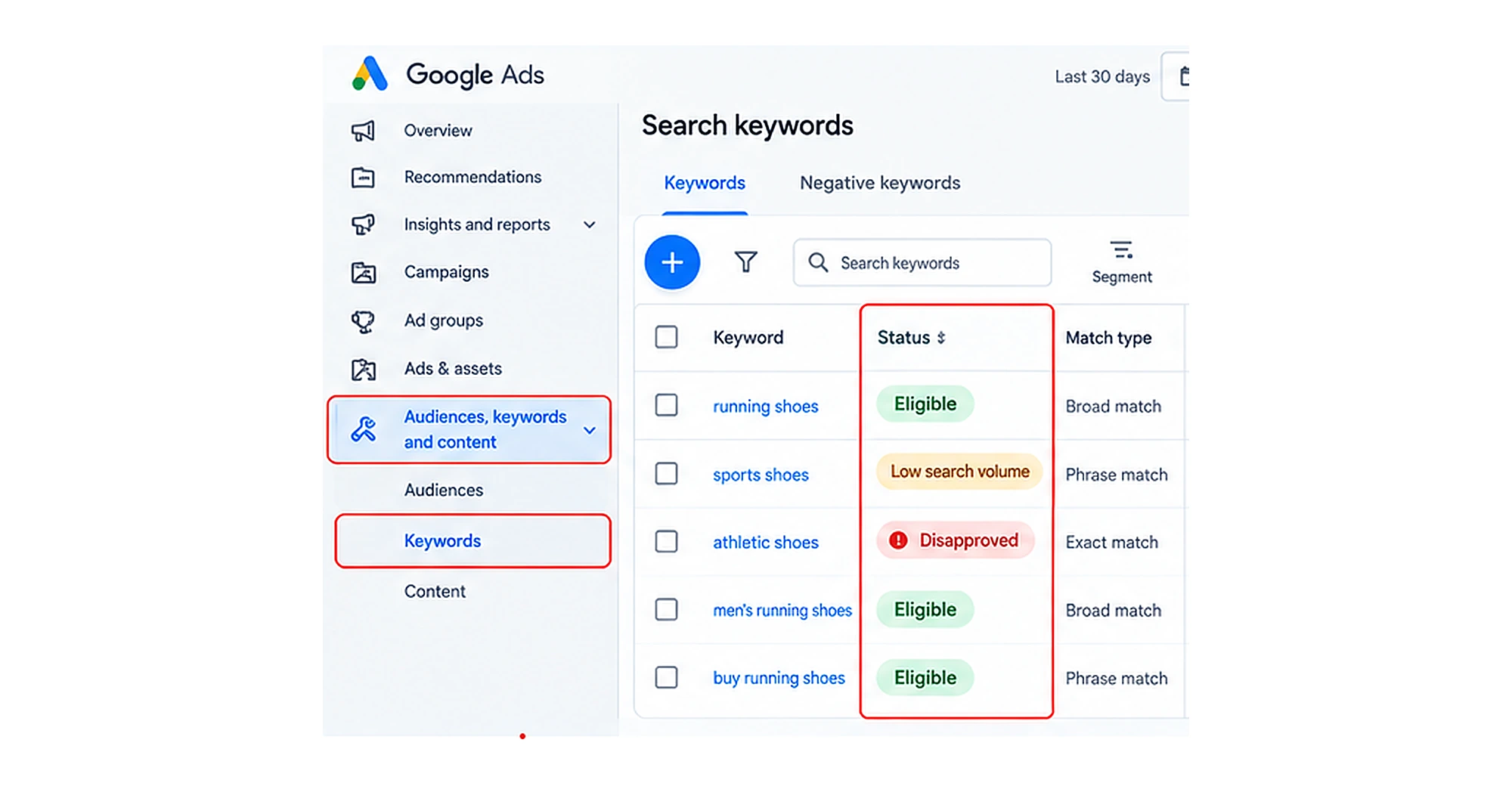
For this, open your search campaign and navigate to Audiences, keywords, and content. Search for keywords in your account. Review the status column for each keyword.
Here you can see eligible, low search volume, and disapproved statuses.
2. Research More Relevant Keywords
The main purpose of this is to identify and target those terms that potential customers are actually browsing for.
For this, you can use Google Keyword Planner to review related search terms, estimated search volume, and competition.
3. Check the Match Type
Google Ads supports broad match, phrase match, and exact match for Search keywords. These match types differ in how they connect keywords to searches. If your keyword strategy is too restrictive, consider testing phrases or broad matches where appropriate, while maintaining relevant conversion goals, negative keywords, and budget controls.
Do not switch every keyword to broad match simply to increase impressions. Broader matching can increase reach, but it can also attract less relevant searches if the campaign is not monitored carefully.
Note: A low-volume keyword may still be commercially valuable when it becomes eligible and a relevant search occurs. Keep your business goals in mind when deciding whether to retain it, replace it, or add alternative keywords.
8. Your Budget or Bid Is Too Low
If Google Ads signals that your budget or bid is too low, your campaign cannot win enough auctions to get impressions or clicks. Your daily budget reflects how much you are willing to spend per day, while your bids or bidding strategy influence how Google competes for advertising opportunities.
These settings serve different purposes: a low budget can restrict overall delivery, while an uncompetitive bid may make it harder for your ad to win an auction.
How to Fix?
1. Check the Campaign Budget
The main purpose is to determine whether your budget is restricting the campaign’s ability to capture available traffic.
For this, go to your campaigns in your account, then review the Budget column or open the campaign’s settings.
Check whether the campaign is marked as Limited by budget, where that status is available.
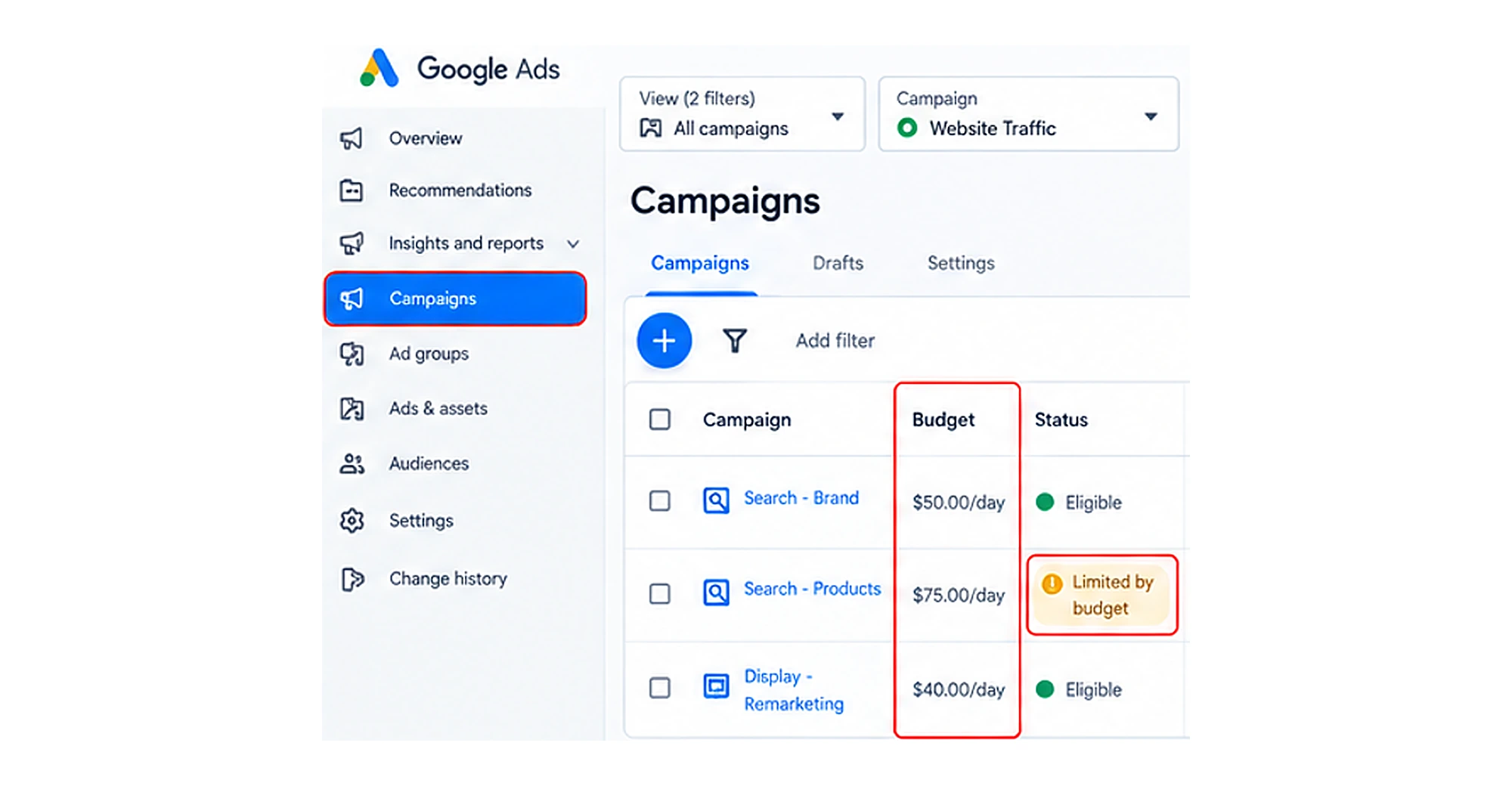
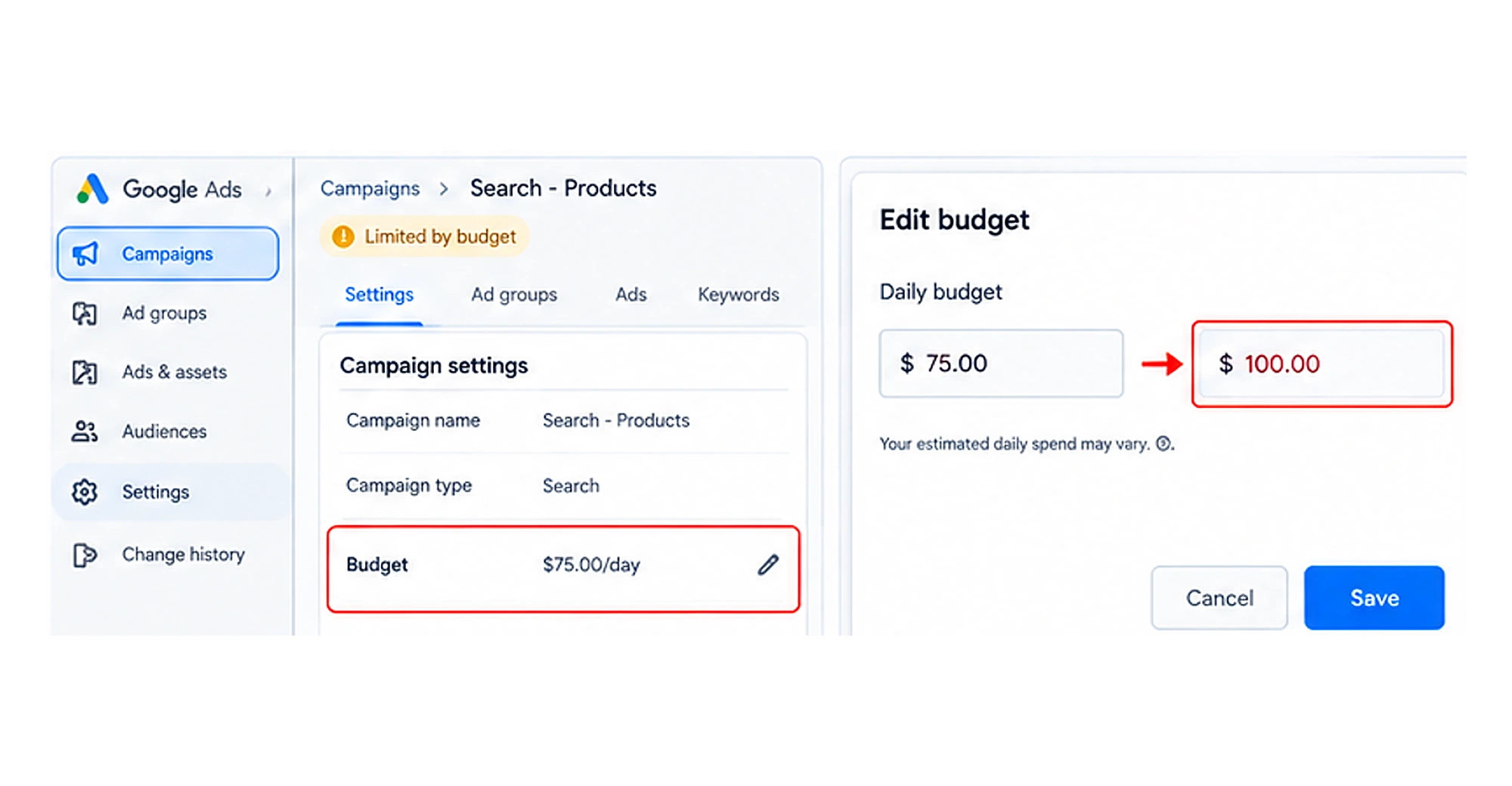
Compare your daily budget with factors such as actual spending, impression volume, clicks, and conversion performance.
If the campaign is budget-limited and the additional traffic is valuable, then increase the budget that aligns with your advertising goals.
2. Review Your Bidding Strategy
This will help ensure that your bidding strategy supports the conversion goals you want to achieve.
For this, go to the campaign settings and click on bidding.
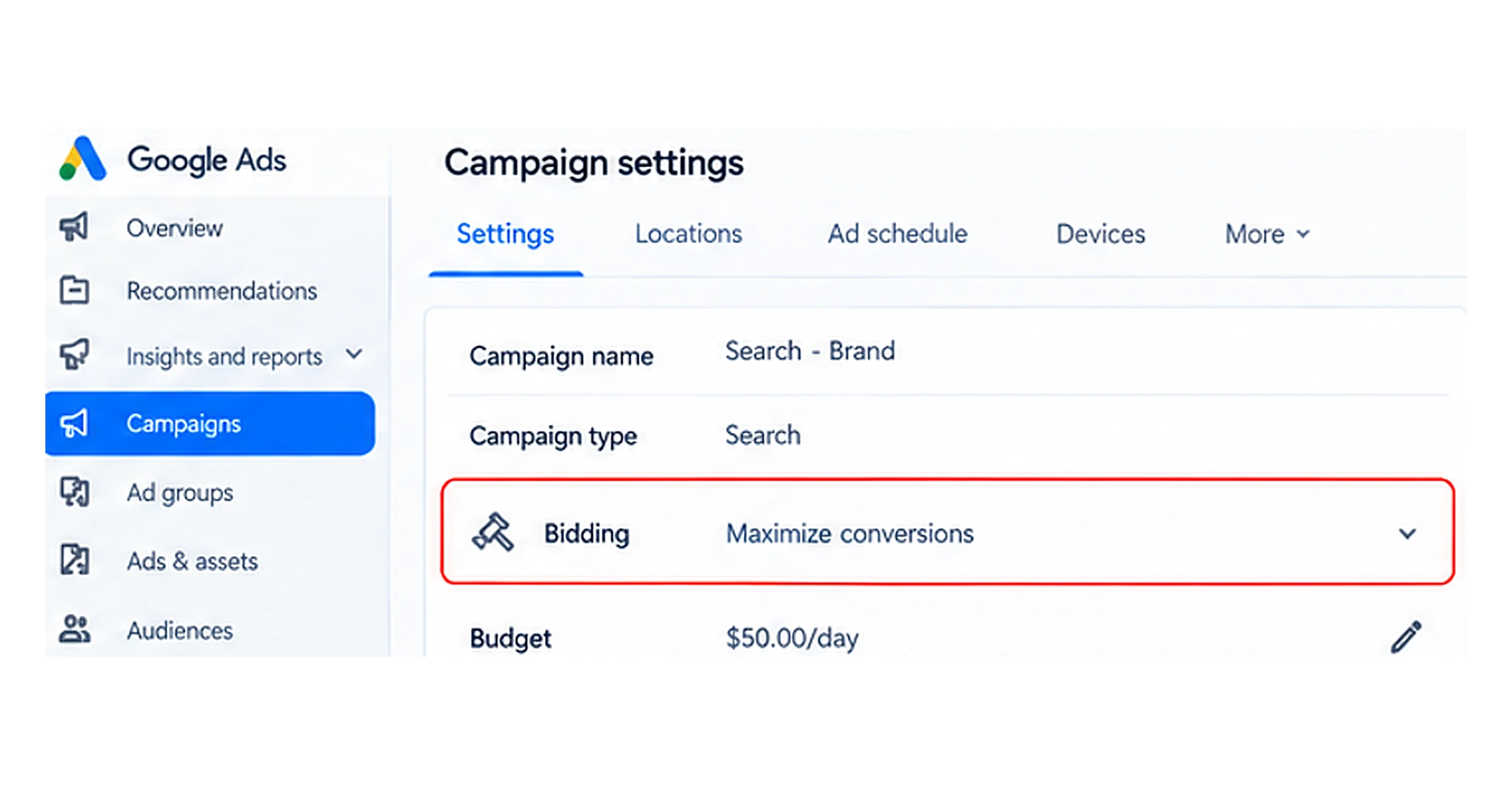
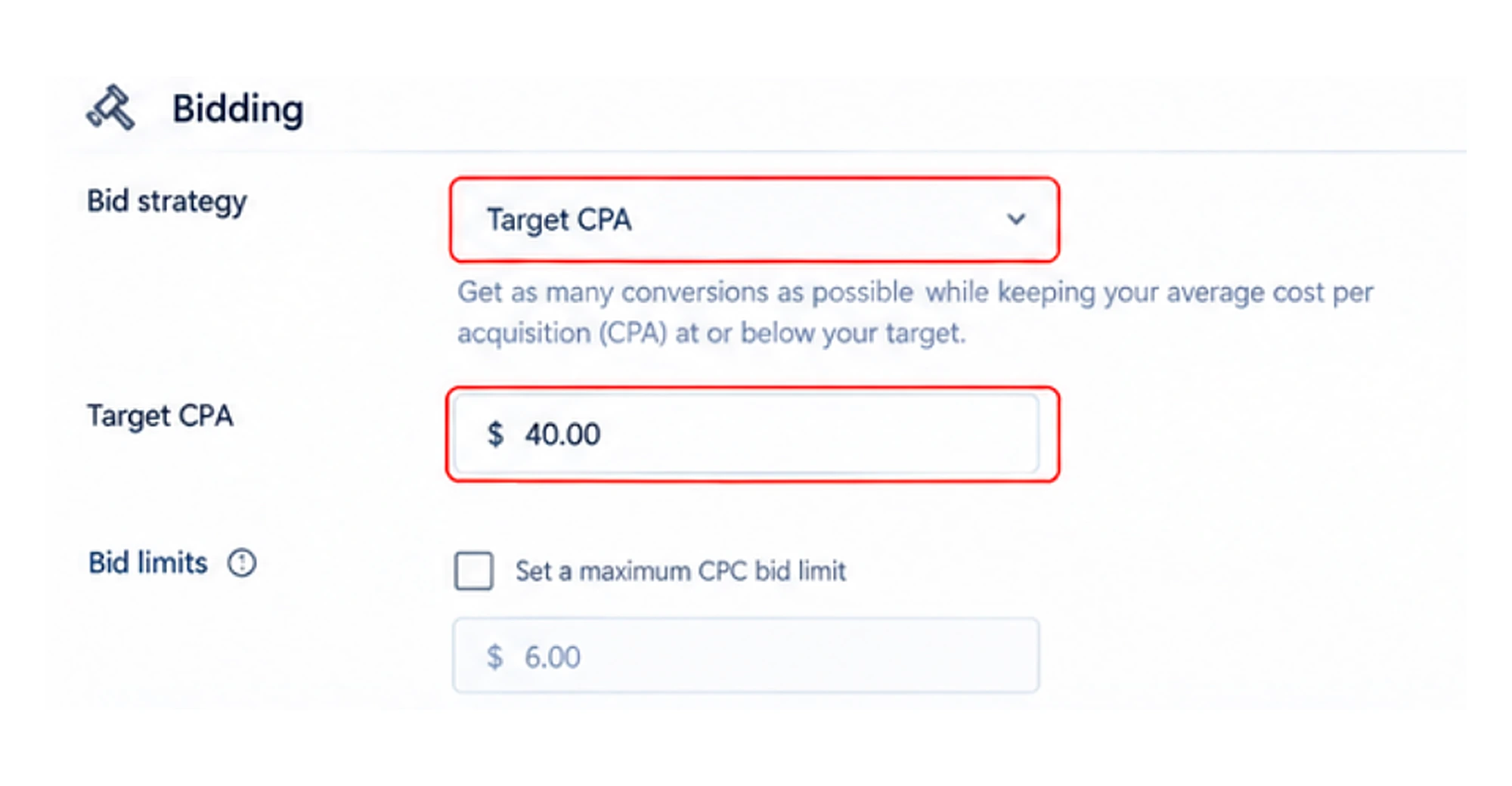
Now, under bidding, check the bid strategy you have selected and the target CPA and bid limit.
9. Your Ad Rank or Quality Score Is Too Low
This generally happens when Google views your ads, landing pages, or targeted keywords as less relevant than your competitors’.
AD Rank helps Google determine whether to show your ad or not on the search results page. It depends on various factors like your bid, ad quality, competition, and the expected impact of ad assets.
Quality Score is a keyword-level diagnostic tool rated on a scale of 1 to 10 that helps you understand the quality of your Search ads.
If these 2 factors are weak, then your ads may receive fewer impressions.
How to Fix?
1. Review the Quality Score
- Start by identifying search keywords under search campaigns.
- Check the current status of your keywords and identify components marked as below average.
- Prioritize keywords with low impressions.
2. Improve Ad Relevance
The purpose is to match your targeted keywords with the customer’s search intent.
- For this, group keywords in an organized manner in ad groups.
- Write clear headlines and descriptions that reflect your services and products.
- Explain what your product or services offer and what’s the next step for users.
3. Improve Landing Page Experience
The purpose is to redirect your target audience to a relevant page after clicking on your landing page.
- Make sure to add clear, helpful information.
- Work properly on all devices.
- Make the next step easy to understand, such as requesting a quote or contacting your business.
10. Google Is Limiting Your Impressions Under Limited Ad Serving
Limited ad serving is generally prohibited by Google and reduces the chances of your ads appearing in auctions.
Why does Google do this?
- Your account may be new.
- You have not completed the required identity or business verification.
- Your ad format or content is against Google policies.
This means Google restricts the number of impressions your ads can receive.
How to Fix?
- Complete all required business information. Ensure your legal documentation, payment profile, and business name match your website details.
- Make sure that website clearly reflects your own brand logo and business name.
- Fix any technical issues such as broken links, 404 pages, or heavy redirects on your landing pages.
- Stop bidding on or targeting unrelated competitor brand keywords.
- Fill out and submit the Limited Ad Serving Appeals Form once your account compliance is fixed.
Frequently Asked Questions
How long does it take for new Google Ads to get impressions?
A new Google Ads account generally gets impressions within 24 to 48 hours.
However, totally new accounts or campaigns that use automated bidding can take 3 to 7 days.
How to fix Google Ads limited by budget?
If your campaign is showing as limited by budget, then review the daily budget and spending patterns. Compare your budget with the traffic, clicks, and conversions you are getting from it. Increase your budget if additional traffic is likely to generate valuable results.
What are some common mistakes to avoid in Google Ads?
Here are some common mistakes to avoid:
- Targeting limited potential customers
- Targeting keywords with low search volume
- Ignore disapproved ads
- Sending visitors to irrelevant landing pages
- Billing issues
What causes a sudden drop in Google Ads impressions?
Here are some common reasons that can drop your impressions suddenly:
- Paused campaigns
- Disapproved ads, changes in targeting or bidding settings
- Decrease in search demand
- Google Ads policy restrictions
- Increased competition
How do I know if my ad is actually being blocked by a policy?
Go to your Google Ads dashboard, navigate to the Ads & assets tab, and look at the Status column. If it shows Disapproved or Eligible (limited), hover over or click the status to read the policy reason and submit an edit or appeal.
Can negative keywords stop all my impressions?
Yes, if you target broad negative keywords, they can accidentally block your ad group or campaign. Review your negative keyword lists and fix this issue.
Conclusion
When your ads are not getting impressions, the issue is not always your budget or the keywords you target. There are several other reasons, for example, billing issues, account restrictions, disapproved ads, incorrect campaign settings, etc., that can affect ad delivery.
How can you resolve this issue? Start by checking the ad status, billing information, policy notifications, and targeted keywords. After this, analyze your targeting criteria, budget, and bidding strategy.
Make changes based on the available data rather than adjusting multiple settings at once. The goal is not simply to increase impressions but to reach the right audience and generate meaningful results.